How to migrate product images without losing resolution

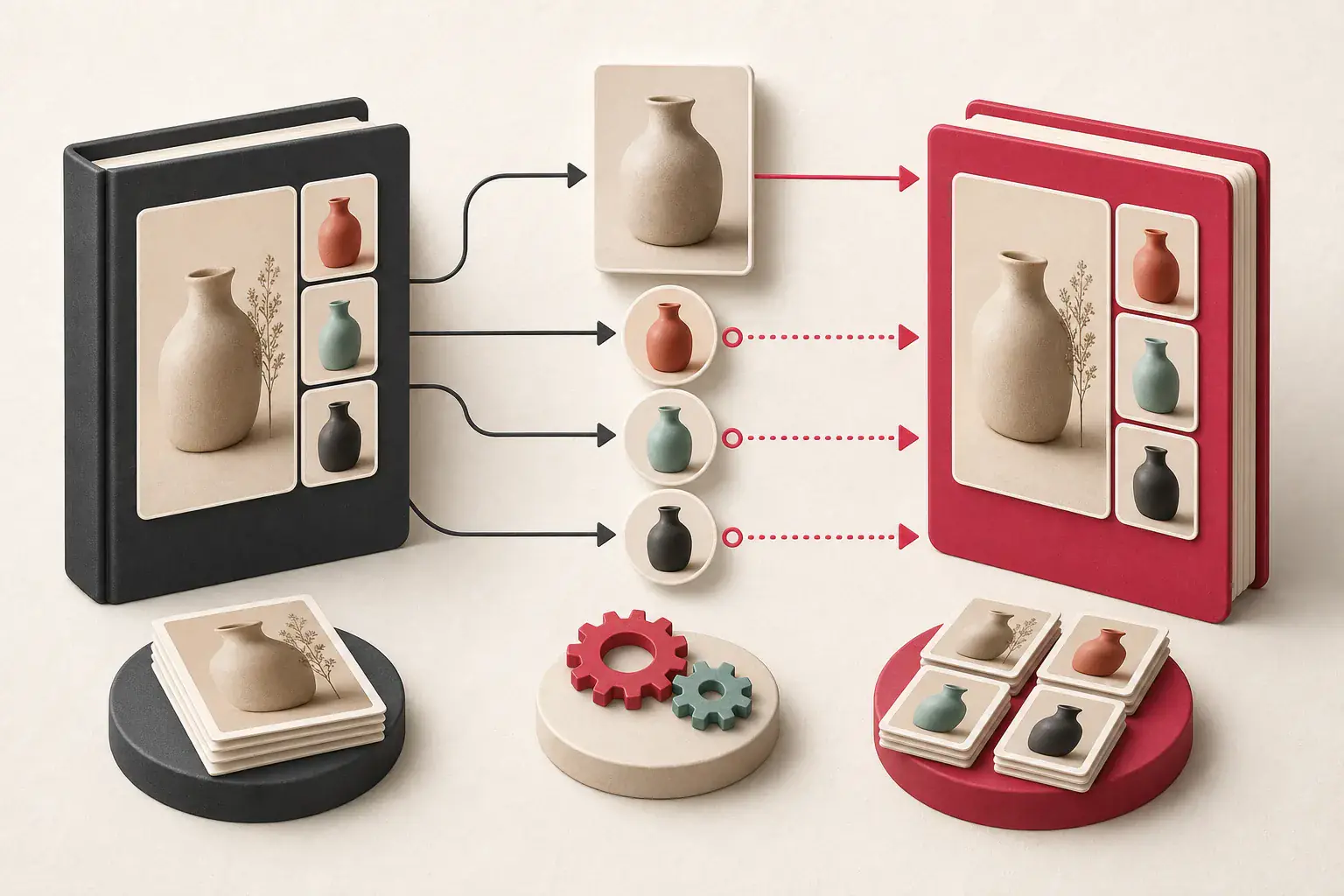
Product-image migration is not a copy-and-paste job. Each file is tied to a product, variant, gallery position, alt value, crop, and sometimes a supplier or license record. The destination platform may recompress the upload, strip metadata, rename files, or generate new derivatives with different aspect ratios.
A migration can look complete while quietly reducing quality. Grid cards appear normal, but zoom views use 600-pixel sources. White-background packshots gain gray edges. Variant swatches point to the wrong color. Search and social images still reference the retired CDN.
Protect the masters first. Then move the relationships and generate derivatives that fit the destination.
Define the catalog baseline
Export a product manifest from the source system with stable IDs. Include:
- Product ID, SKU, and handle
- Variant IDs and option values
- Image or media IDs
- Gallery position
- Featured image
- Variant-image associations
- Alt text and captions
- Source URL or object key
- Width, height, and format
- Publication status
Record expected product, variant, and media counts. The storefront is not the only source of truth because drafts and hidden products may not be public.
Preserve master files before transformation
Download or export the original authorized files from the media library, object store, supplier archive, or platform API. Do not use collection thumbnails as masters.
For each file, calculate a hash and verify:
- Pixel dimensions
- Actual MIME type
- Transparency
- Animation if applicable
- Color profile
- Visual integrity at 100 percent zoom
Store the original separately from any resized copies. Keep a read-only backup through the migration and rollback period.
Distinguish originals from derivatives
The source storefront may expose several versions:
product-small.webp
product.jpg?w=600&fit=crop
product.jpg?w=1600&fit=inside
Build an asset family and identify the least transformed, highest-detail authorized source. A larger square crop is not necessarily better than a slightly smaller uncropped master.
Use how to find full-size images and the CDN parameter guide during source analysis.
Map images to products and variants
Create a join table rather than encoding relationships in filenames:
| Product ID | Variant ID | Asset ID | Position | Role |
|---|---|---|---|---|
| P100 | V100-BLUE | A900 | 1 | Featured and blue variant |
| P100 | V100-BLUE | A901 | 2 | Detail |
| P100 | V100-RED | A902 | 1 | Red variant |
This table survives renaming and URL changes. It also makes validation possible after import.
Test products with several variants, shared images, and unusual gallery ordering. Simple products will not expose mapping bugs.
Audit aspect ratios and crops
Platforms use different default card ratios. A source store may use uncropped portrait images while the destination theme expects squares. Automatic cover cropping can cut off products or labels.
Decide for each component:
- Contain or cover behavior
- Background color
- Focal point
- Required aspect ratio
- Minimum master dimensions
- Whether an art-directed crop is needed
Generate crops from masters and keep the recipe. Do not overwrite the source file with a theme-specific square.
Protect resolution
List the maximum rendered size for product grids, detail galleries, zoom views, high-density displays, social cards, and marketplace feeds.
A practical master should have enough real pixels for the largest approved use. Upscaling a 700-pixel file to 2,000 pixels changes dimensions without restoring detail.
Compare naturalWidth with rendered width on the destination. Read why extracted images look blurry if a large file still looks soft.
Choose destination formats
Keep archival masters in formats suited to their content and business workflow. Generate delivery variants such as WebP or AVIF where the destination supports them, with appropriate fallbacks.
Consider:
- JPG for photographic masters and broad compatibility
- PNG for lossless transparency and sharp graphics
- WebP for efficient web derivatives
- AVIF for strong compression when platform and workflow support it
- SVG for vector logos and icons, not product photography
Do not convert transparent packshots to JPG unless adding a background is deliberate. Check the image file format guide for tradeoffs.
Avoid repeated lossy compression
If the source file is already a compressed storefront derivative, uploading it to a destination that compresses again can add artifacts.
Return to the original whenever possible. Export only once into each delivery format. Keep quality settings consistent and test difficult images: fabric texture, gradients, small labels, jewelry edges, and dark products.
Do not judge from thumbnail view. Inspect at 100 percent and on the actual storefront component.
Preserve color
Product color errors lead to returns and customer frustration. Record embedded color profiles, convert deliberately to the destination's expected color space, and compare representative files on calibrated equipment when color accuracy is important.
Watch for:
- Desaturated uploads
- Shifted reds and blues
- Transparent edges with dark halos
- Gray backgrounds becoming warm or cool
- Destination optimizers stripping needed profiles
Keep the camera or approved retouched master as the reference.
Preserve alt text and captions
Alt text can describe the product view or functional purpose. Export it by occurrence and product relationship. Do not derive final text from filenames.
During import, confirm that the destination field maps correctly and is rendered on the final <img>. Some migration tools place the value in an administrative field that the theme does not output.
Use the alt text export guide for a reviewable worksheet.
Handle filenames safely
Readable filenames help debugging, but they should not be the only identity. Sanitize unsafe characters, preserve original names as metadata, and use stable asset IDs to prevent collisions.
If SEO-relevant image URLs must change, map important old sources and decide whether redirects are appropriate. Avoid renaming files repeatedly after launch.
Migrate supplier and licensing records
Product photographs can be owned by the store, manufacturer, distributor, photographer, or marketplace. A supplier agreement may allow use only while the product relationship remains active.
Move source and permission records with the media. Record attribution or channel restrictions. A new domain, marketplace feed, or advertising campaign can fall outside earlier permission.
Use how to check an image's source and license for uncertain assets.
Use a staging import
Never make the first import directly into the live destination.
In staging:
- Import a representative catalog subset.
- Verify file and relationship counts.
- Check variant selection.
- Check gallery order and featured images.
- Generate destination derivatives.
- Test grid, detail, zoom, cart, recommendation, and search views.
- Compare color, crop, transparency, and detail.
- Crawl for broken URLs.
- Export the destination records and reconcile IDs.
Include simple and difficult products in the sample.

Build an idempotent migration
The process should be safe to rerun. Keep a mapping between source asset IDs and destination asset IDs. On retry, update the existing record rather than uploading another physical copy.
Log:
- Successful imports
- Skipped unchanged assets
- Failed downloads
- Unsupported formats
- Duplicate detections
- Relationship conflicts
- Manual-review items
A resumable process prevents one network failure from creating a half-duplicated catalog.
Deal with duplicates deliberately
Calculate exact hashes before uploading. Reuse one destination asset when the platform and business rules allow it, but preserve separate product relationships and alt contexts.
Use perceptual grouping to identify resized copies, then review them. Two similar packshots can represent different product revisions.
The duplicate image guide covers safe consolidation.
Verify public delivery
After import, crawl the rendered destination storefront. Compare:
- Expected products and media counts
src,srcset, and zoom requests- Natural and rendered dimensions
- Variant switching
- CDN responses and MIME types
- Old-domain references
- Broken or private links
- Social images
The website migration image QA checklist provides a full sign-off list.
Test performance without sacrificing quality
The destination should not send masters to every grid card. Generate responsive widths, set accurate sizes, and use suitable compression. Preserve enough resolution for zoom without loading it until needed.
Measure:
- Largest Contentful Paint
- Image bytes per template
- Duplicate requests
- Cache headers
- Layout shift
- Real-user Core Web Vitals after launch
A lighter page is good only when products still look accurate.
Cutover and rollback
Freeze source catalog changes or run a final delta export before cutover. Back up both systems. Keep the source media available through an agreed rollback window.
After DNS or platform changes, monitor broken-image requests and customer-facing pages. Do not delete the old bucket as soon as the homepage looks correct.
Final sign-off
The image migration is complete when:
- Every expected asset and relationship is reconciled.
- Product and variant mappings match the source.
- Gallery order and featured selections are correct.
- Masters remain safely archived.
- Destination derivatives are sharp and appropriately sized.
- Transparency and color are preserved.
- Alt text and rights records are present.
- Public pages contain no staging or retired CDN links.
- Restoration and rollback documentation exists.
Trust the storefront, not the import log
An import log can say "success" while the blue variant shows the red shoe and the zoom view serves a thumbnail. The storefront, not the log, is the final witness.
Protect the masters first. Map files by stable product and variant IDs, make the destination's crops from those masters, and compare real pages across breakpoints. Check color and transparency where they are easy to damage. Once the catalog relationships, URLs, pixels, and visual samples reconcile, the migration is ready to leave its rollback window.
Related posts
Why extracted images look blurry and how to find the original
A practical guide to finding the full-resolution file when a website gives you a soft thumbnail, compressed preview, or undersized responsive image.
Website migration image QA checklist
A before-and-after image testing workflow for redesigns, domain moves, platform changes, and CDN migrations.
How to back up images from a Shopify store you own
A store-owner workflow for creating an independent image backup before theme changes, migrations, supplier updates, or catalog cleanup.