How to back up images from a Shopify store you own

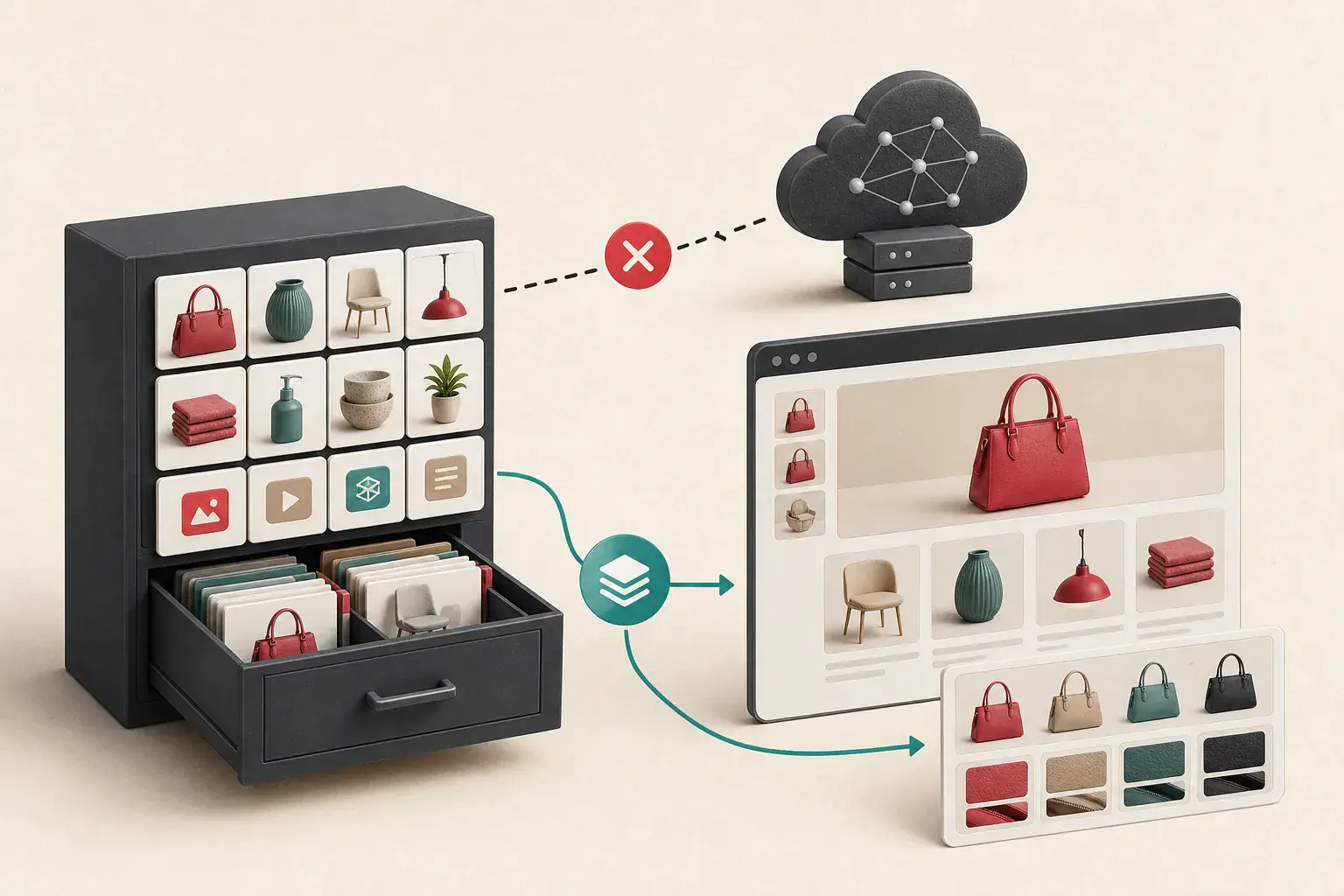
Product images are part of the store's operational data. They are tied to products, variants, collections, articles, theme sections, and marketing pages. A folder of photographs without those relationships is only a partial backup.
Shopify keeps media on its CDN and creates URLs suited to storefront layouts. Collection cards can load small crops while product zooms use larger files. Theme graphics and blog images may live outside the product-media list. A reliable backup therefore combines platform data with a rendered storefront inventory.
The intended reader is a store owner or authorized administrator, not someone copying another seller's catalog.
Define the backup scope
Decide which assets matter:
- Product featured images
- Product gallery media
- Variant-specific images
- Collection images
- Blog and page images
- Theme section backgrounds
- Logos, icons, and social images
- Files in the admin content library
- Metafield image references
Also decide whether videos, 3D models, downloadable files, and private assets are in scope. They need separate handling.
Write the expected counts from an authorized catalog export or administrative API. A storefront crawl alone cannot prove completeness because unpublished products and files that no public page references will not appear.
Back up relationships, not only URLs
For each product image, record:
| Field | Why it matters |
|---|---|
| Product ID and handle | Reconnects media after migration |
| Variant IDs | Preserves color or style mapping |
| Media position | Keeps gallery order |
| Alt text | Preserves accessibility and product context |
| Original or largest authorized URL | Identifies the source file |
| Width and height | Checks resolution |
| Filename and format | Supports restoration |
| Export date | Establishes backup version |
| File hash | Verifies integrity and duplicates |
Do not use product title as the only identifier. Titles change and may not be unique.
Use Shopify's supported export paths first
Start with the administrative tools and APIs available to your store and plan. Export product data and media references through supported mechanisms. If your migration platform provides an official connector, inspect its field mapping rather than assuming it preserves every association.
Platform interfaces change. Confirm the current Shopify documentation before running a production backup, especially for API versions, bulk operations, and media object fields.
Keep exported structured data beside the files. A CSV or JSON manifest makes the archive restorable.
Understand storefront CDN variants
Themes request images at sizes suitable for each component. One product source can appear as:
- A small collection-card image
- A medium recommendation image
- A responsive product-gallery candidate
- A larger zoom image
- A social sharing crop
The URL may include transformation instructions. Do not save only the first image visible in the product grid. The image CDN parameter guide explains size, crop, format, and signed transformations.
Prefer an original or platform-supported largest source from authorized product data. Use storefront requests to verify public delivery, not as the only archive.
Crawl the public storefront as a second check
Build a canonical list of public product, collection, article, and page URLs. Use the Shopify image downloader or rendered extraction to inventory the images customers actually receive.
This check can reveal:
- Theme backgrounds missing from the catalog export
- Images embedded in rich text
- Old CDN URLs left in page content
- Variant images that do not appear in the expected gallery
- Collection and recommendation thumbnails
- Lazy-loaded assets
- Responsive candidates and modern-format delivery
Compare the crawl with administrative records. Differences deserve review.
Product gallery testing
Open representative products with:
- One image
- Many images
- Several variants
- Variant-specific photography
- Mixed aspect ratios
- Recently updated media
Click every gallery item and change variants. Watch the Network panel or rendered result for larger files that load only after interaction.
Record whether selecting a variant changes the featured image and whether the mapping is present in the export. A folder of correct files can still restore into the wrong variant order.

Theme and section images
Theme settings can reference hero banners, promotional tiles, slideshow images, and backgrounds. These may not belong to a product.
Export or document theme settings, then scan the rendered homepage, collection templates, product templates, and landing pages. Inspect CSS backgrounds as well as <img> elements.
Use how to extract CSS background images when a banner cannot be saved normally.
If you are changing themes, keep a screenshot and configuration record for each section. The screenshot preserves layout context, while the source file preserves quality.
Blog, page, and rich-text images
Images embedded in articles and pages can be overlooked because they are not in the product catalog. Export the content and extract every referenced media URL.
Keep the relationship between image and article slug. Store alt text and captions separately from the file. Check draft or scheduled content through authorized administrative exports if it must be preserved.
Do not rely only on public sitemaps when the backup scope includes unpublished content.
Metafields and app-managed media
Custom product sections can reference images through metafields or installed applications. Identify apps that manage galleries, reviews, size charts, personalization previews, or user uploads.
Ask:
- Is the media stored in Shopify or the app's system?
- Does uninstalling the app remove access?
- Is there a documented export?
- Are customer-uploaded files private or regulated?
- What retention and consent rules apply?
Do not crawl private customer files from the storefront. Use the app's authorized export and handle personal data according to your policies.
Download original or best available files
For each master candidate:
- Use the stable media record rather than a visible thumbnail.
- Download with a conservative, resumable process.
- Record HTTP status and actual MIME type.
- Verify pixel dimensions.
- Calculate a hash.
- Open a sample at 100 percent zoom.
- Keep failed downloads in a retry queue.
If a URL is signed or temporary, store the stable asset identifier and create fresh authorized links during backup. See why image downloads return 403.
Preserve filenames without trusting them as IDs
Readable filenames help humans, but two products can use front.jpg, and one file can be renamed by the platform. Store images under stable asset or product identifiers and keep the original filename as metadata.
A directory structure might separate product masters, theme media, content images, and manifests. Avoid placing every file in one folder where collisions are resolved by unexplained suffixes.
Detect duplicates without breaking reuse
The same supplier photograph may be referenced by several products, or editors may have uploaded physical copies. Group exact file hashes and visually similar derivatives.
Do not delete until product and variant references are mapped. The duplicate image guide explains asset families and canonical masters.
Verify color and transparency
Product presentation depends on accurate color. Keep original color profiles when they are required and test conversion output on representative displays.
Logos, packshots, and overlays can depend on transparency. Confirm PNG, WebP, or AVIF alpha survives download and restoration. A white background introduced during conversion can make product images unusable.
Check permissions and supplier agreements
Owning the store does not automatically mean you own every photograph. Supplier feeds, marketplace assets, licensed stock, influencer content, and customer uploads can have usage limits.
Record the source and permitted channels. A migration may move an image to a new domain, marketplace, or advertising system that was not covered by the original agreement.
Use the image source and license checklist for uncertain assets.
Build the backup package
A complete archive contains:
- Original or best authorized media files
- Product and variant manifest
- Collection and content-page manifest
- Theme asset and setting references
- Alt text, captions, and positions
- File hashes and dimensions
- Ownership or license records
- Backup date and platform version notes
- Failed-item report
- Restoration instructions
Encrypt sensitive exports and restrict access. Product images may be public, but unpublished catalog data, customer files, and administrative tokens are not.
Test restoration
A backup is not finished until a sample can be restored.
In a development store or controlled staging environment:
- Import several products with simple and complex galleries.
- Reconnect variant images.
- Verify order and featured selection.
- Restore collection and theme images.
- Check alt text and content embeds.
- Generate new storefront derivatives.
- Compare dimensions, crop, color, and transparency.
- Crawl the restored pages for broken URLs.
Document manual steps and gaps in the import tool.
Schedule ongoing backups
A one-time archive becomes stale after the next product launch. Choose a cadence based on catalog activity and business risk. Keep versioned manifests so deleted and changed items can be identified.
Monitor backup jobs for failed downloads and schema changes. Test a restoration periodically, not only after a crisis.
Use a migration QA pass
When the backup feeds a new storefront, follow the website migration image QA checklist. Compare product counts, gallery order, variant mapping, responsive sources, old CDN references, social images, and performance.
The new platform should generate derivatives from preserved masters. Do not migrate today's small collection thumbnails as tomorrow's only source.
A backup should be restorable
A backup proves itself during restoration. Until then, it is a hopeful pile of files.
Use Shopify's administrative data to keep product, variant, and gallery relationships intact, then compare it with the storefront to catch theme and article images outside the catalog. Preserve dimensions, hashes, and rights notes beside the media. Restore a sample into a safe environment. If you can rebuild the pages without leaning on the old CDN, you have a backup. If not, you have found the gap while the store is still available to fix it.
Related posts
How to Save Product Images From Websites
How image CDN URL parameters change size, crop, and quality
A technical field guide to reading transformed image URLs and finding the largest version a page is authorized to serve.
How to migrate product images without losing resolution
A migration workflow for protecting product-image quality and catalog relationships across ecommerce platforms.