Website migration image QA checklist
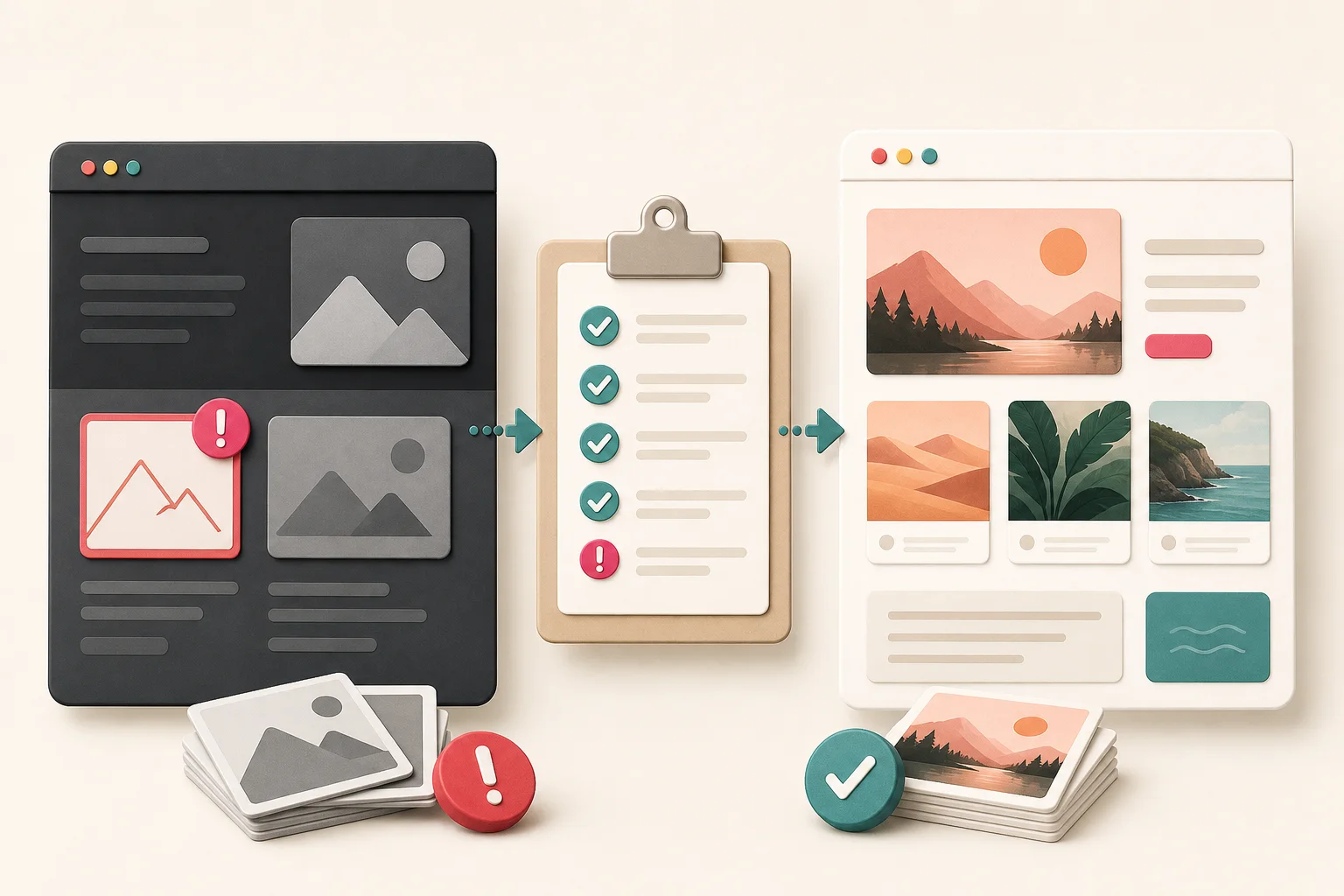
A website migration can succeed technically while damaging its images. Pages return 200, navigation works, and the new design looks polished on a laptop. Yet product zooms load thumbnails, social cards still use the staging domain, old article diagrams return 404, and mobile crops remove the subject.
Image QA needs a before-and-after process. The old site provides the baseline, the approved inventory defines what should move, and the new crawl reveals what actually happened.
Use this checklist for domain changes, CMS moves, ecommerce platform migrations, CDN replacements, and major redesigns. It assumes you own or are authorized to manage the assets.
Before the migration: establish the baseline
Export the current page list from sitemaps, CMS records, and important analytics landing pages. Crawl the rendered templates so lazy images and CSS backgrounds are included.
For every meaningful occurrence, record:
- Old page URL
- Image URL and role
- Natural dimensions
- Displayed dimensions
- Alt text and caption
- Responsive candidates
- Master asset or stable ID
- Ownership or license
- Keep, replace, or remove decision
The website image inventory guide provides the full structure.
Take screenshots of a representative set of pages at mobile and desktop widths. Screenshots are not asset backups, but they are useful visual references for crop, placement, and missing-state comparison.
Preserve original files
Do not build the migration from cached thumbnails or current CDN transformations. Export originals from the CMS, object store, product catalog, or approved archive.
Verify that the files open and record hashes. A backup that contains corrupted zero-byte files is not a backup.
Keep transformation recipes separately: target widths, crops, quality, formats, and focal points. The new platform should generate derivatives from masters.
Create an old-to-new mapping
Map every retained asset:
old delivered URL -> stable asset ID -> new master -> new public URL
If old media URLs have backlinks, search traffic, embedded uses, or customer documentation, decide whether they need redirects. Not every thumbnail URL deserves a permanent redirect, but important originals and share images often do.
Audit the migration environment before launch
Broken image responses
Check for 404, 403, 500, redirect loops, and HTML responses served at image URLs. Verify actual Content-Type values.
Staging references
Search HTML, CSS, JSON-LD, manifests, and database content for staging domains, temporary R2 URLs, localhost, old CDN hosts, and development paths.
Mixed content
An HTTPS page should not request HTTP images. Browsers may block them, leaving gaps that developers overlook in a warm session.
Access controls
Public images must not require administrator cookies or expiring preview links. Social crawlers and search engines do not share your login.
Case sensitivity
Moving from a case-insensitive filesystem to a case-sensitive host can break Photo.JPG referenced as photo.jpg.
Check image quality and resolution
Compare natural dimensions with rendered dimensions at each breakpoint. Flag images displayed wider than their useful source resolution.
Inspect:
- Hero and Largest Contentful Paint images
- Product zoom files
- Retina or high-density displays
- Full-width article diagrams
- Author avatars
- Logos and social cards
Do not judge only by file dimensions. Preview detail at 100 percent to detect upscaled thumbnails or aggressive compression. Use why extracted images look blurry for diagnosis.
Validate responsive image markup
For each important component:
- Confirm
srcsetcandidates exist and return images. - Confirm
sizesmatches the real layout. - Check
<picture>source order and format support. - Inspect
currentSrcon mobile, tablet, and desktop. - Test standard and high-density displays.
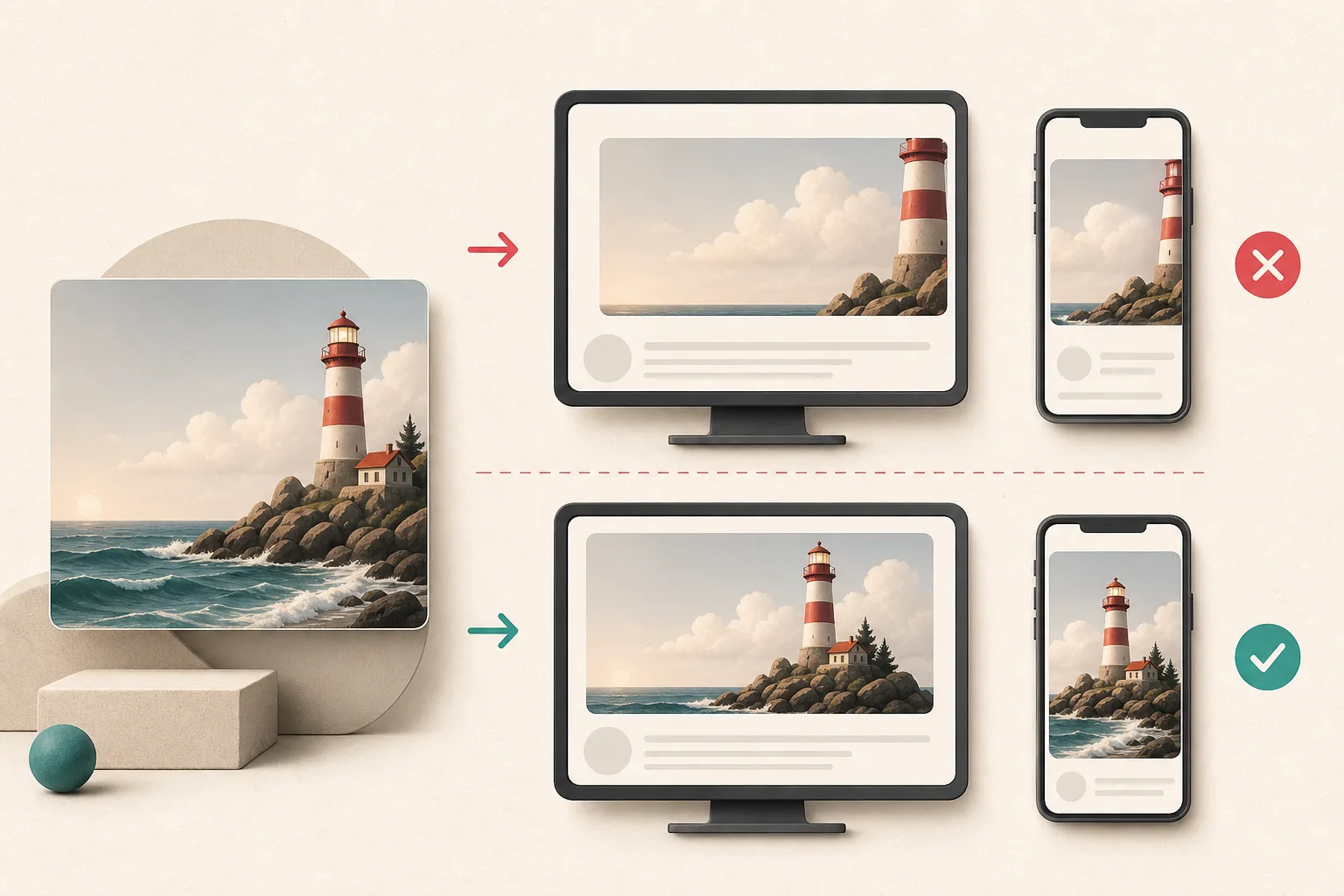
- Confirm art-directed crops keep the subject visible.
- Make sure fallback
srcis valid.
The responsive image guide explains selection rules.

Test lazy loading
Scroll long pages slowly and confirm every planned image appears. Open accordions, tabs, slides, and load-more states. Watch for placeholders that never swap, images that load only after a large delay, and virtualized lists that lose earlier records.
Do not lazy-load the main above-the-fold image when it is the likely LCP element. Check the actual template rather than applying one rule to every image.
Read the lazy image extraction guide for hard-to-detect states.
Check CSS backgrounds
Hero artwork and decorative sections can disappear even when every <img> works. Inspect computed background-image, pseudo-elements, masks, and media-query variants.
Confirm relative paths resolve from the new stylesheet location. A CSS file moved from /css/ to /assets/build/ can break ../images/ references.
Use the CSS background guide for a systematic check.
Verify product and gallery relationships
For ecommerce and portfolio migrations, a file existing is not enough. Check:
- Product-to-image associations
- Variant image mapping
- Gallery order
- Primary or featured image
- Zoom version
- Color swatches
- Collection thumbnails
- Captions and credits
Sample simple and complex products. A single-image product cannot reveal gallery-order bugs.
The product image migration guide covers catalog-specific risks.
Validate alt text and accessibility
Compare occurrence-level alt text with the baseline. Flag:
- Missing alt attributes
- Filenames used as descriptions
- Duplicated generic text
- Decorative images announced unnecessarily
- Linked images with no accessible purpose
- Important text embedded only in images
Do not restore bad alt text blindly. Use the migration as a review opportunity, with human judgment and page context. The alt text export guide provides a worksheet method.
Test logos and identity images
Check:
- Header and footer logos
- Dark and light variants
- Favicon links
- Apple touch icon
- Manifest icons and maskable purpose
- Open Graph images
- Twitter card images
- Organization schema image
Clear caches or use versioned URLs when testing. Social platforms can retain an older preview after the page is fixed.
Use the website identity image guide for declaration locations.
Validate formats and headers
Make sure WebP and AVIF files are served with the correct MIME types. Confirm fallback formats where your audience or tooling needs them.
Check SVGs for valid markup and safe handling. Animated GIF or WebP files should still animate if animation is intentional. PNG transparency should not gain a white or black background during conversion.
Compare file size and performance
A migration can accidentally replace optimized derivatives with originals. Review bytes transferred, not just image appearance.
Look for:
- Multi-megabyte images in small cards
- Duplicate downloads of fallback and modern formats
- Missing cache headers
- CDN cache misses
- Unnecessary quality settings
- Layout shift caused by missing dimensions
- Slow LCP caused by late discovery or lazy loading
Use PageSpeed Insights and Search Console field data after deployment. Lab testing cannot replace real-user metrics.
Crawl after launch
Run a full public crawl from outside the administrator session. Compare:
- Expected page count
- Image occurrences
- Unique assets
- Broken responses
- Old-domain references
- Missing metadata
- New duplicates
Use the locally hosted Firecrawl service or another rendering-aware crawler for pages where JavaScript supplies content. Store the crawl date and configuration so the result can be reproduced.
Sample visually
Automated checks cannot decide whether a crop cuts off a face or whether a diagram is too small to read. Review a representative set:
- Homepage
- Blog index and article
- Product list and detailed product
- Long gallery
- Search or results state
- About and contact pages
- Mobile navigation and footer
Test common mobile widths as well as desktop. Compare with approved baseline screenshots.
Monitor after launch
Keep the old mapping and QA report. Watch server logs and error monitoring for missing media paths. Review Search Console for crawling issues and social previews for important pages.
Do not delete the old media store immediately. Keep a defined rollback period, access controls, and ownership. When the retention window ends, remove it through a documented process.
Sign-off criteria
The migration is ready when:
- Every approved keep asset is accounted for.
- No public page references staging or private delivery URLs.
- Critical old media URLs behave according to the mapping plan.
- Responsive and lazy images work across tested breakpoints.
- Product and gallery relationships match the source.
- Alt text, captions, credits, and licenses are preserved or deliberately improved.
- Identity and social assets use the production domain.
- Broken image responses are resolved.
- Performance does not regress beyond agreed thresholds.
- Human visual sampling passes.
Reconcile first, then retire the old system
A polished homepage can hide a messy migration. The real test is whether the new site accounts for the old site's approved images, URLs, meanings, and responsive behavior.
Let the crawl catch dead files, stale domains, and suspicious dimensions. Let people catch the portrait cropped at the chin or the diagram whose labels became unreadable. Keep the old media system available until both reviews pass and the redirects have been observed in production. Retiring it early turns a fixable mismatch into a recovery job.
Related posts
How to build a website image inventory before a redesign
A reusable inventory process for teams preparing to redesign, migrate, archive, or clean up an image-heavy website.
How to migrate product images without losing resolution
A migration workflow for protecting product-image quality and catalog relationships across ecommerce platforms.