How to extract lazy-loaded images missing from page source

You paste a gallery URL into a downloader and get twelve images even though the page shows fifty. Or you search the page source for a photograph that is clearly on screen and find nothing. The missing files are often lazy-loaded: the website waits until an image is near the viewport before assigning or requesting its real URL.
Lazy loading cuts initial page weight and makes long pages feel faster. It also means a quick HTML request can capture only placeholders, while an extractor that does not scroll stops before the rest of the gallery exists.
Start by finding out how the site defers its images. Reproduce the scroll or click that activates them, then inspect the rendered page. The same approach works with native lazy loading, data-src attributes, load-more buttons, and virtualized lists.
What lazy loading actually changes
An ordinary image is eligible to load as soon as the browser parses it:
<img src="photo.jpg" alt="Wooden chair beside a window">
Native lazy loading adds an instruction:
<img loading="lazy" src="photo.jpg" alt="Wooden chair beside a window">
The URL is present in both cases. With loading="lazy", the browser delays the network request until it predicts the image will soon be needed. A static parser can still read the address, even if the file has not loaded.
JavaScript-based lazy loading can be harder. The real URL may sit in a custom data attribute:
<img
  src="placeholder.svg"
  data-src="photo.jpg"
  data-srcset="photo-640.jpg 640w, photo-1280.jpg 1280w"
  class="lazy"
  alt="Wooden chair beside a window"
>
A script watches the element. When it approaches the viewport, the script copies data-src to src and data-srcset to srcset. A tool that checks only src sees the placeholder.
Some applications go further and do not add the <img> element until an API call completes. In that case, neither the tag nor the URL exists in the initial document.
Why View Page Source can be misleading
"View Page Source" displays the HTML response originally sent by the server. Developer Tools displays the live DOM after scripts have run, data has arrived, and the visitor has interacted with the page.
On a server-rendered article, the two may be similar. On an infinite gallery or single-page application, they can be very different. The live DOM can contain dozens of image elements that never appeared in the source response.
Use page source to understand the initial markup. Use the Elements and Network panels to understand what the browser actually rendered.
Method 1: scroll before extracting
For a normal long page, slow scrolling is often enough.
- Open the page and wait for the first screen to settle.
- Scroll downward in steps rather than jumping straight to the bottom.
- Pause briefly after each group of images appears.
- Continue until no new content loads.
- Scroll back through the page once if the site unloads or replaces elements aggressively.
- Run the extraction after the images are present.
The pauses matter. Scrolling faster than the network can respond may leave empty placeholders behind. A load-more button or pagination control also needs an explicit click.
For a rendered automated scan, use ExtractPics Deep Extract. It loads the public page in a browser, scrolls, and can follow additional page states. Review the results rather than assuming every network image belongs to the gallery.
Method 2: inspect data attributes
Select an unloaded or recently loaded image in Developer Tools and look for attributes such as:
data-srcdata-originaldata-lazy-srcdata-srcsetdata-bgdata-background-image
These names are conventions, not standards. A site can choose any attribute name. Compare the element before and after it loads to see what changes.
If src contains a transparent pixel or tiny placeholder while data-src contains a normal image URL, the custom attribute is the useful one. For responsive images, inspect both the single URL and the full candidate list. The guide to srcset and <picture> explains how the browser chooses among those candidates.
Method 3: use the Network panel
The Network panel shows requests as lazy images activate.
- Open Developer Tools and select Network.
- Filter by Img.
- Clear the existing request list.
- Scroll or click the gallery control.
- Watch new image requests appear.
- Open a request to see its URL, dimensions, response type, and initiator.
This is useful when a script creates blob URLs or assigns CSS backgrounds. It also shows whether the browser requested a small responsive candidate rather than the largest file.
Preserve the request log if navigation or pagination replaces the current document. Otherwise, earlier requests may disappear from view.
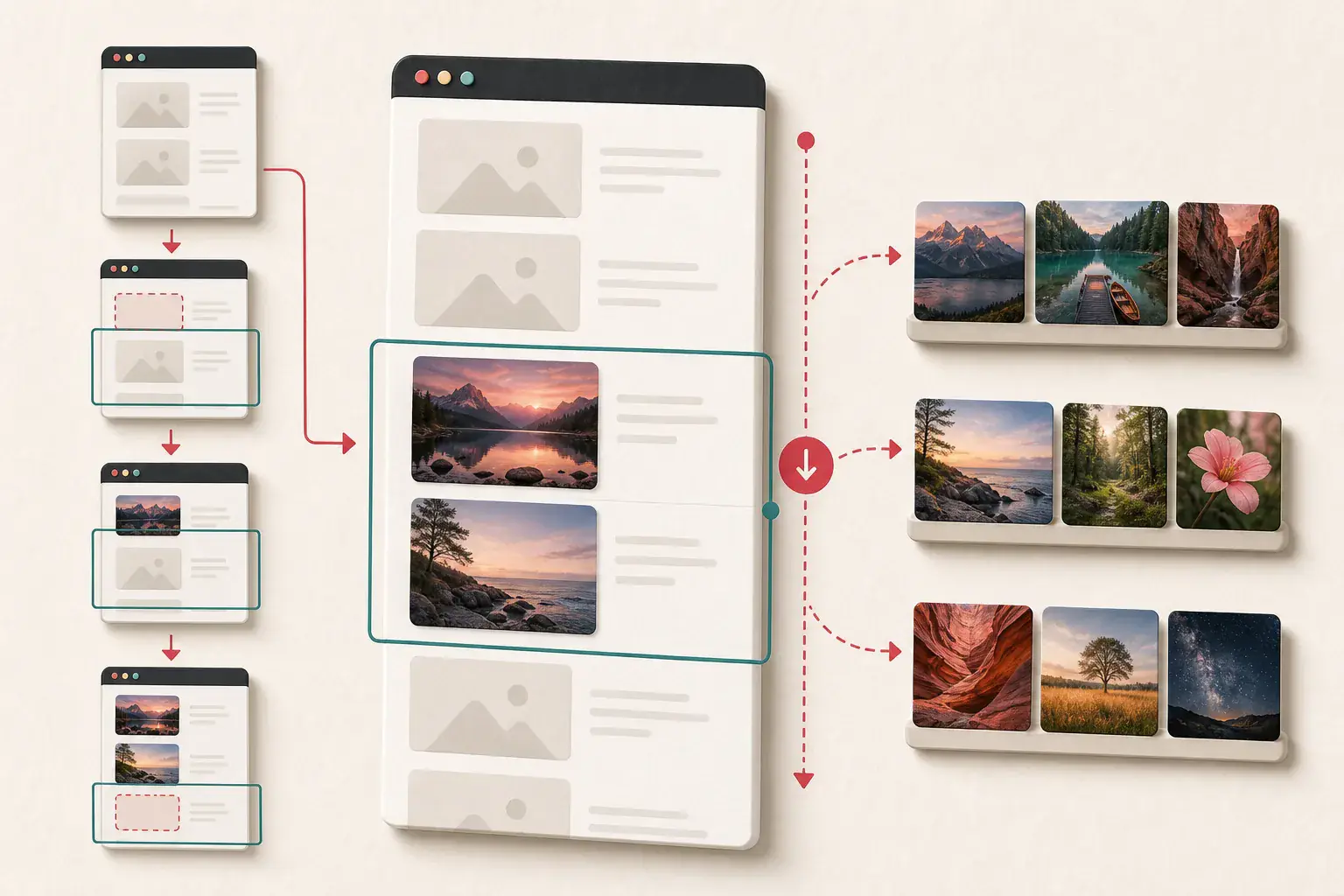
Intersection Observer is a common trigger
Many lazy loaders use the browser's Intersection Observer API. It tells a script when an element enters or approaches the viewport. The script can then request the image.
You do not need to reverse-engineer the entire observer to extract authorized assets. The practical consequence is simple: the element must reach the observed region. If the site uses a root margin, loading may begin shortly before it becomes visible.
Hidden tabs and collapsed accordions complicate this. An image inside display: none content may never intersect anything. Open the tab or accordion first.
Load-more buttons are not the same as lazy images
Lazy loading delays files for elements already planned on the page. A load-more button requests another batch of records, often from an API. Those images do not exist in the DOM until the button is used.
The same is true for numbered pagination. Loading page one thoroughly will not reveal page two's assets.
When your goal is an authorized backup or inventory, record which page or batch produced each file. This prevents accidental gaps and makes duplicate removal easier. The website image inventory guide includes a suitable structure.
Infinite scroll needs a stopping rule
Infinite pages can be truly long, repeat content, or keep producing recommendations with no meaningful end. "Scroll until finished" is not a safe plan by itself.
Choose a boundary before you begin:
- Stop after a known number of owned products or posts.
- Stop when the displayed result count is reached.
- Stop after the page repeats the same cursor or item IDs.
- Stop when several scroll cycles add no new unique images.
- For a migration, use the platform's catalog or sitemap as the source of truth.
The article on downloading images from infinite-scroll galleries covers batching and virtualized layouts in more depth.
Virtualized lists can remove images again
Some large galleries keep only the visible rows in the DOM. As you scroll down, earlier image elements are removed or reused. This controls memory use but creates a trap: inspecting the DOM at the bottom may show only the final screenful.
The Network panel with Preserve log enabled can retain requested URLs. A purpose-built extractor can also collect images incrementally as it scrolls rather than scanning the DOM only once at the end.
If the same element is reused for several records, deduplicate by final URL and, where possible, keep the item identifier that introduced it.
Lazy CSS backgrounds
A site may store a background URL in data-bg and apply it later:
<div class="feature-card" data-bg="/images/studio.webp"></div>
After activation, JavaScript might assign an inline background-image. Inspect computed styles after scrolling. The CSS background extraction guide explains the manual steps.
Backgrounds can also switch at media breakpoints, so repeat the check at relevant viewport sizes if you are auditing a responsive design.

Why forcing every image to load can backfire
Some browser-console tips recommend replacing every data-src blindly or removing all lazy attributes. That can work on a simple page, but it can also:
- Request hundreds of files at once
- Choose the wrong responsive candidate
- Trigger rate limits
- Break application state
- Load images the interface was never meant to reveal in the current view
- Miss records that require an API request anyway
Prefer normal page behavior first. Scroll, click legitimate controls, and let the application supply its public content. Use DOM edits only on pages you control and test them in a disposable session.
A repeatable extraction workflow
For one page:
- Load the page with JavaScript enabled.
- Note the visible number of items.
- Open tabs, accordions, or gallery views needed for the task.
- Scroll in measured steps and wait for requests.
- Use every legitimate load-more control within your planned boundary.
- Inspect live
src,srcset, custom data attributes, and computed backgrounds. - Preserve network requests when the DOM is virtualized.
- Extract, then group and deduplicate the URLs.
- Verify several files manually, including the first and last batch.
If the page returns many tiny support files, use the filtering guide before downloading the final set.
Test your own lazy-loaded pages
Website owners should test more than whether images eventually appear.
- Keep above-the-fold hero images eager when they are likely to be the Largest Contentful Paint element.
- Include meaningful width and height information to reduce layout shift.
- Confirm that images load with keyboard navigation and browser zoom.
- Check that search crawlers receive useful HTML and alt text.
- Test slow connections and disabled cache.
- Make sure failed JavaScript does not leave critical content permanently blank.
MDN's Lazy loading guide documents the native loading attribute and related performance concepts.
Respect access and ownership
Rendering a public page does not authorize republishing its images. Use lazy-image extraction for your own site, a client site you manage, a licensed collection, permitted research, or another lawful workflow.
Do not use it to bypass authentication, private galleries, paywalls, or access controls. If reuse is planned, verify the source and license first. The image copyright guide explains why downloading and reuse are separate decisions.
Do not stop at the first screenful
The first screenful tells you almost nothing about a lazy gallery. Sometimes the URL is sitting in data-src; sometimes the item itself has not arrived yet. Scroll slowly enough for requests to finish, use the page's own load-more control, and collect results as they appear instead of waiting for one final scan.
Then check the count against something real: a catalog total, pagination record, sitemap, or CMS export. "It looked finished" is a weak stopping rule. A matching count plus working files from the beginning and end of the set is far more convincing.
Related posts
How to Extract Images From Any Website (Step-by-Step Guide)
How srcset and picture choose the image your browser loads
A plain-English explanation of responsive image selection, including density descriptors, width descriptors, formats, and original-file discovery.
Why Download All misses images in infinite-scroll galleries
Learn why a gallery looks complete on screen while an extractor sees only the first batch, and how to load the rest reliably.