How websites expose logos, favicons, and social preview images

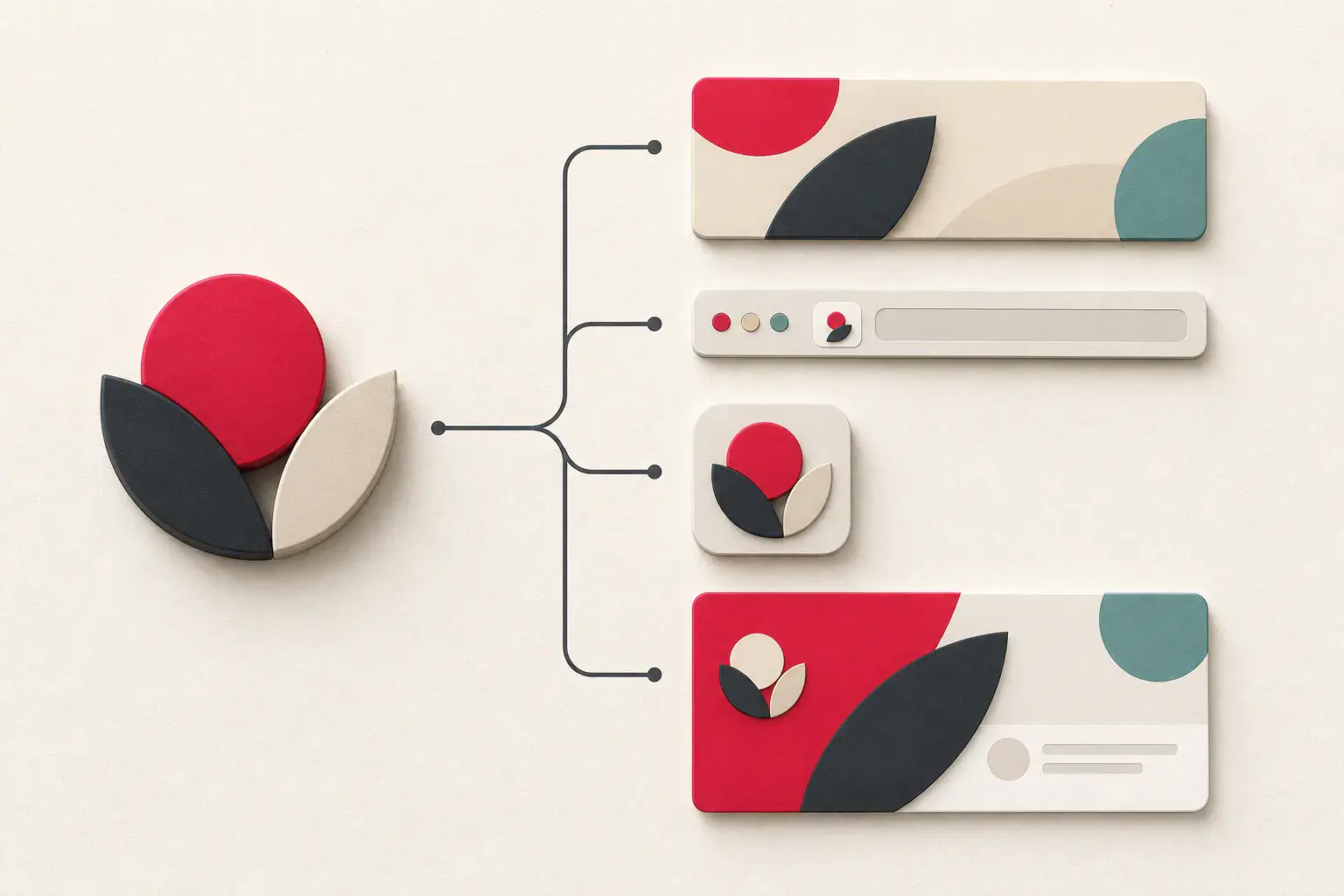
A website can use several images to represent the same brand. The header has a wide logo, the browser tab shows a tiny favicon, a phone saves a square app icon, and a shared link displays a large social preview. These files are related, but they are not interchangeable.
Knowing where each one is declared helps when you are auditing your own identity assets, migrating a site, checking link previews, or collecting an authorized brand kit. It also prevents a common mistake: enlarging a 32-pixel favicon because it was the easiest logo-like file to find.
Start with the visible header logo
Inspect the logo in the navigation. It may be:
- An
<img>with a PNG, WebP, or SVG source - Inline SVG markup
- A CSS background
- Text styled with a brand font
- A
<picture>with responsive variants
Record the element's source, natural dimensions, alt text, and link. If srcset is present, check every candidate. For an inline vector, preserve the complete SVG and its styles.
Use the SVG sprites and web icons guide when the mark is built from symbols or masks.
Check whether the header uses a small derivative
Navigation space is limited, so the displayed file may be optimized for a short header rather than intended as a master. Search the site's media library, brand page, press kit, footer, and structured metadata for a larger or differently composed version.
A wide wordmark and a square brand mark should be stored as separate roles. Do not crop one mechanically and call it the other.
How favicon links work
Favicons are commonly declared in the document head:
<link rel="icon" href="/favicon.ico" sizes="any">
<link rel="icon" href="/icon.svg" type="image/svg+xml">
<link rel="icon" href="/icon-32.png" sizes="32x32">
Browsers can select among several icons based on format and size. Some still request /favicon.ico by convention even when other links exist.
The sizes value describes the file's intended dimensions. An SVG can use any because it scales. Inspect the actual file rather than trusting a stale declaration.
Favicons are designed for recognition at tiny sizes. They often simplify the full logo, remove words, or adjust spacing. They are not suitable as a large website logo.
Apple touch icons
Sites can provide an icon for saving a page to an Apple device's home screen:
<link rel="apple-touch-icon" href="/apple-touch-icon.png">
This is usually a larger square raster image. Its background and corner treatment may differ from the favicon. Apple devices can apply their own masking, so keep important artwork away from extreme edges.
During a migration, verify that the file remains reachable at the declared path and is served with the correct content type.
Web app manifests
A web app manifest can list several application icons:
{
  "icons": [
    { "src": "/icon-192.png", "sizes": "192x192", "type": "image/png" },
    { "src": "/icon-512.png", "sizes": "512x512", "type": "image/png" }
  ]
}
The page links the manifest:
<link rel="manifest" href="/site.webmanifest">
Manifest icons can include a purpose such as maskable. A maskable icon needs safe padding because launchers may crop it into circles, rounded squares, or other shapes.
Download the manifest, resolve icon paths relative to it, and record each purpose. Do not assume the 512-pixel application icon is the official master logo; it may be a specially padded product asset.
Open Graph images
Social platforms commonly use Open Graph metadata:
<meta property="og:image" content="https://example.com/social/article-cover.jpg">
<meta property="og:image:width" content="1200">
<meta property="og:image:height" content="630">
<meta property="og:image:alt" content="A guide to responsive website images">
The file represents the page when shared. An article usually has its own cover, while a homepage may use a brand-level card. A social image often contains layout, text, or a wide crop that does not appear in the visible page.
Check that the URL is absolute, public, uses HTTPS, and returns an actual image without authentication. Preview crawlers do not share your browser session.
Twitter card images
Pages may also declare:
<meta name="twitter:card" content="summary_large_image">
<meta name="twitter:image" content="https://example.com/social/article-cover.jpg">
When both Twitter card and Open Graph fields exist, platforms follow their own fallback rules. Keep them consistent unless there is a deliberate reason for separate artwork.
Avoid embedding essential details only as tiny text inside the image. The page title and description should carry the meaning in metadata.
Structured data images
Article, Product, Organization, and other schema objects can contain image URLs. These may overlap with visible covers or social metadata.
Rendered JSON-LD needs proper inspection because some applications inject it with JavaScript. For your own site, use Google's Rich Results Test or another rendering-aware validator. Do not conclude schema is missing based only on a text scraper that removes script tags.
An image listed in schema should accurately represent the entity and remain crawlable.
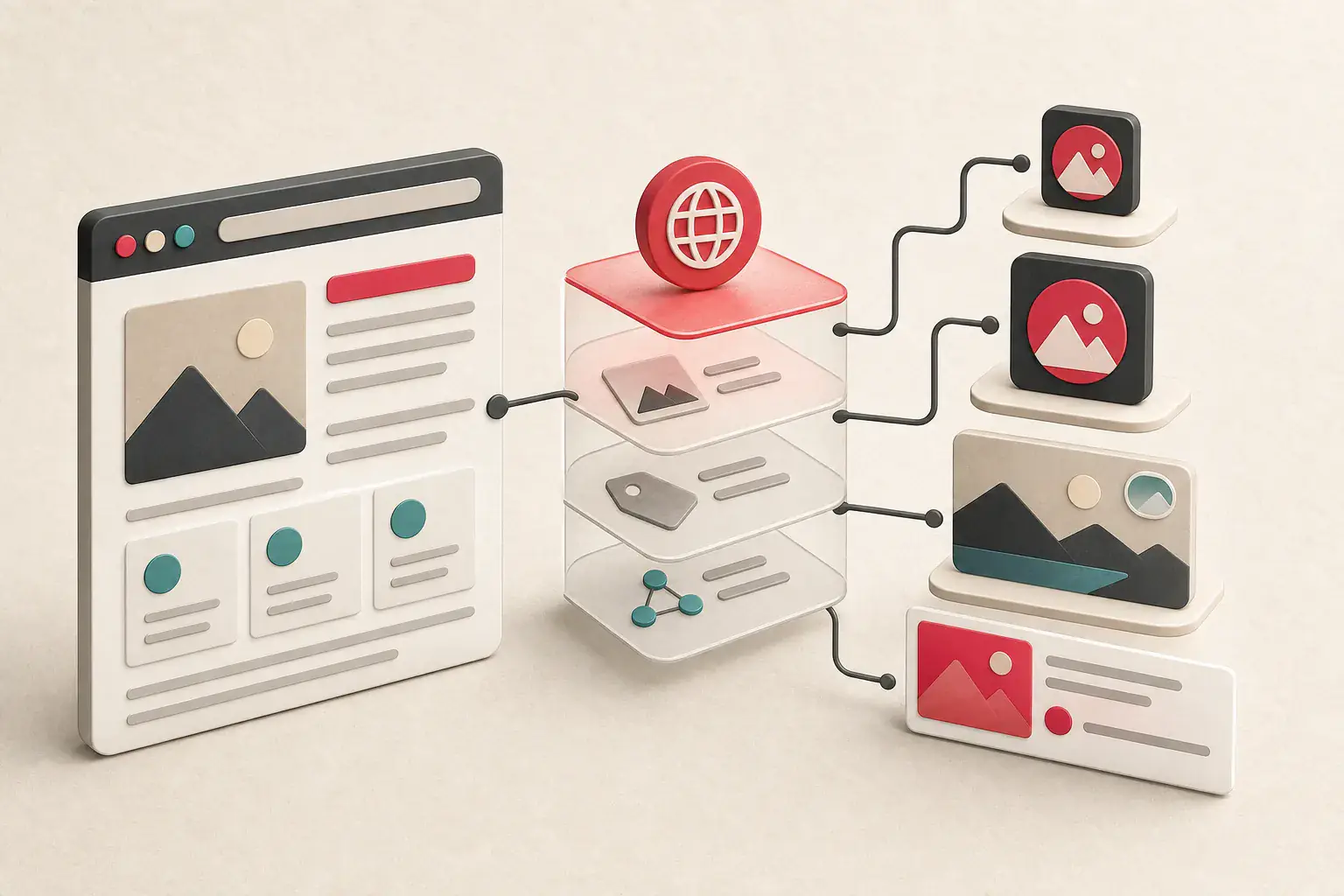
Find assets with Developer Tools
For one page:
- Inspect the header logo and its responsive candidates.
- Search the document head for icon, manifest, Open Graph, and Twitter fields.
- Open the manifest and resolve its icon paths.
- Inspect JSON-LD for relevant image properties.
- Use the Network panel to confirm each file loads.
- Record dimensions, format, role, and source declaration.
The ExtractPics logo downloader can collect public image files from the rendered page. Inline SVG, manifests, and structured metadata still deserve manual review.
Build a brand-asset inventory
Use distinct roles instead of one "logo" folder:
| Role | Typical shape | Intended use |
|---|---|---|
| Primary wordmark | Wide | Header, documents, partnerships |
| Brand mark | Square or compact | Avatars and small spaces |
| Favicon | Tiny, simplified | Browser tabs and bookmarks |
| Touch icon | Square | Saved mobile shortcuts |
| Maskable app icon | Padded square | Installable web app launchers |
| Social preview | Wide card | Shared links |
| Article cover | Usually landscape | Individual content page |
Store light and dark variants separately. Record minimum size, clear space, background requirements, and the source design file if you own it.
Common migration mistakes
Copying only the visible logo
The header survives, but browser icons and link previews still point to the old domain.
Using relative metadata URLs incorrectly
Social crawlers work more reliably with absolute public URLs. Test the deployed page, not only local HTML.
Enlarging a favicon
Small icons are simplified and rasterized for tiny display. Find the vector brand mark or official large asset.
Forgetting cache behavior
Browsers and social platforms cache icons and preview images. A corrected file may not appear immediately. Change the URL deliberately when versioning is necessary.
Losing maskable padding
Replacing a purpose-built app icon with edge-to-edge artwork can cause cropping on installed devices.
The website migration image checklist includes these checks alongside content-image validation.
Logos are protected identity assets
A logo being publicly downloadable does not mean it is free for unrestricted use. Logos are commonly protected by copyright and trademark. Legitimate uses can include your own brand, an authorized client, an official partner mark supplied for display, or reporting and commentary consistent with applicable law.
Do not use another company's mark to imply endorsement or affiliation. Follow its brand guidelines and request permission when required.
The image source and license guide explains how to preserve evidence of permission.
Improve your own site's identity setup
Website owners should:
- Use a sharp SVG or suitable responsive raster for the visible logo.
- Provide tested favicon formats and sizes.
- Include an Apple touch icon when relevant.
- Maintain a valid manifest with appropriate application icons.
- Supply page-specific Open Graph images.
- Add meaningful image alt metadata where supported.
- Keep every public asset accessible to crawlers without session cookies.
- Use consistent canonical URLs and domains in metadata.
- Test preview cards after deployment.
The files should share a visual identity without being identical crops.
Give each brand asset one job
There is no single "website logo" file. The wide header mark, tiny favicon, square app icon, structured-data image, and social card solve different layout problems. Treating the first one you find as the master usually ends with a fuzzy tab icon or a badly cropped share preview.
Record each asset by job, then test the public URLs after deployment. During a migration, check the header and the document metadata separately. If the brand belongs to someone else, stick to the files and contexts its owner has approved.
Related posts
How to extract CSS background images from a webpage
Learn where CSS background images hide, how to locate their real URLs, and why ordinary image-saving methods miss them.
How to find SVG sprites and web icons on a website
A practical guide to the icon systems that ordinary image extractors often represent differently from normal photos.
How to check an image's source and license before reusing it
A repeatable permission-checking workflow for images found on websites, search engines, social platforms, and stock libraries.