How image CDN URL parameters change size, crop, and quality

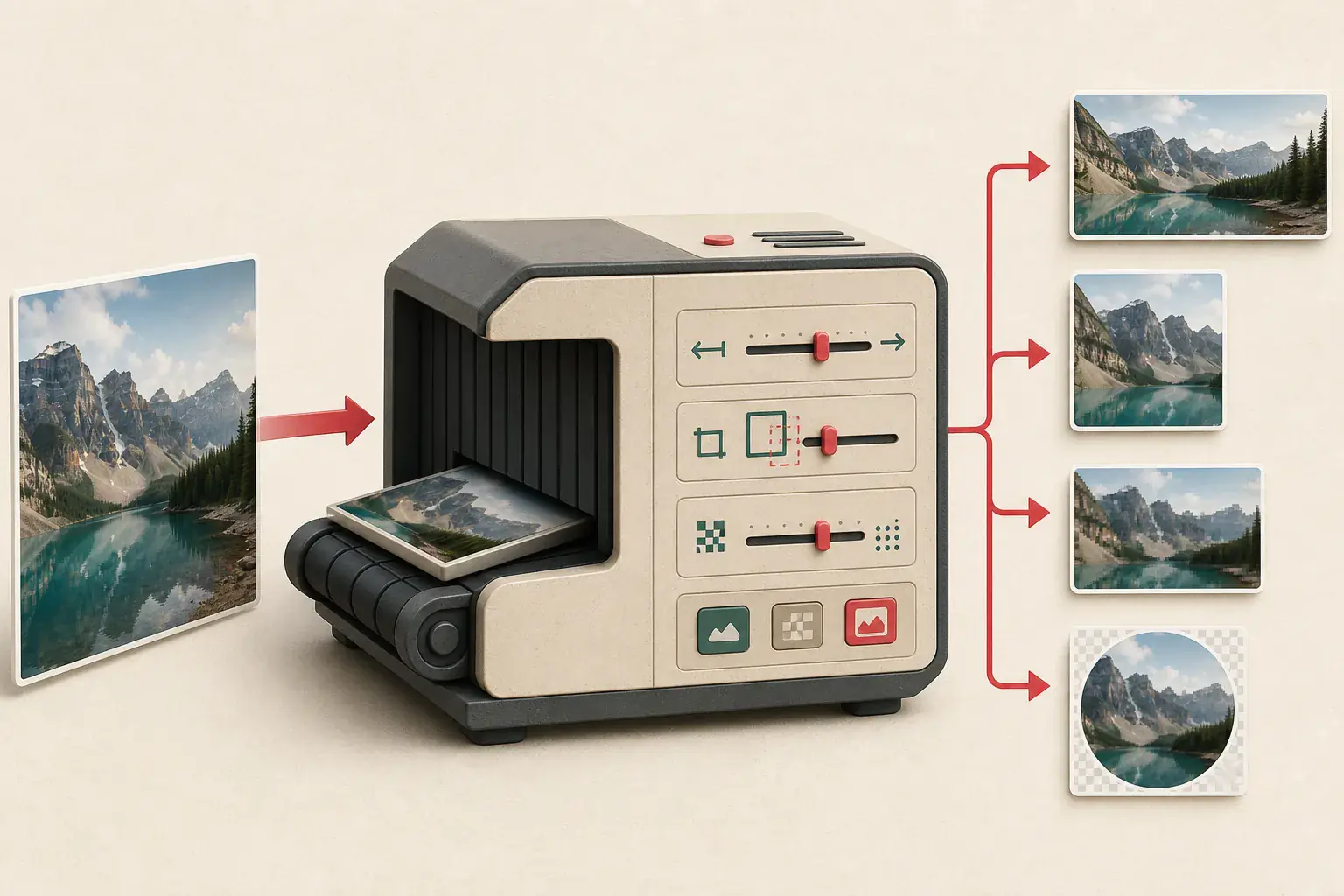
The image URL on a modern website is often an instruction rather than a simple file address. A path can identify the source photograph while query parameters tell an image CDN to resize it, crop it, lower its quality, change its format, or sharpen it before delivery.
That is why two URLs that look almost identical can produce very different files. It also explains why an extracted product photo may be square and small even though the store owns a large portrait original.
Reading these transformations helps during an authorized backup, migration, or quality review. Editing them blindly does not. Some services sign their URLs or restrict permitted sizes, so compare variants the page already requests and verify the results.
What an image CDN does
An image content delivery network sits between stored media and the visitor. It caches files close to users and can create derivatives on demand.
A generic source might be:
https://images.example.com/catalog/chair.jpg
The page could request:
https://images.example.com/catalog/chair.jpg?w=640&q=75&format=webp
The second URL asks for a 640-pixel-wide WebP at a particular quality. The original can remain untouched in storage.
This system saves publishers from pre-generating every combination. It also allows browsers and layouts to receive files suited to their needs.
Common transformation instructions
Parameter names differ, but the underlying operations are familiar.
| Operation | Common-looking parameters | What changes |
|---|---|---|
| Width | w, width |
Output width in pixels |
| Height | h, height |
Output height in pixels |
| Quality | q, quality |
Compression level |
| Crop or fit | fit, crop, mode |
How source fits requested dimensions |
| Format | fm, format, f |
JPG, PNG, WebP, AVIF, or automatic choice |
| Device density | dpr |
Pixel density multiplier |
| Focus | fp-x, fp-y, gravity, position |
Crop focal point |
| Blur or sharpen | blur, sharp |
Visual processing |
These are patterns, not universal names. Always identify the provider or inspect the page's actual requests before drawing conclusions.
Width and height can resize or crop
Requesting only a width often preserves the source aspect ratio:
?w=1200
Requesting both width and height needs a fitting rule. A contain or inside mode usually keeps the entire image within the box. A cover, fill, or crop mode can trim edges so the box is completely filled.
This distinction matters more than the numeric dimensions. A 1,200 by 1,200 crop is larger in pixel count than a 1,000 by 1,500 original-ratio file, but it may have cut off the product or subject.
When choosing a migration master, preview the entire frame. Do not rank candidates by width alone.
Quality parameters do not use one shared scale
Many services use a value from 1 to 100, where a larger number usually means less compression. The visual meaning is provider-specific. A quality of 80 on one encoder is not guaranteed to match 80 elsewhere, and AVIF, WebP, and JPG respond differently.
Automatic quality modes can adapt to format or content. Removing a quality parameter may load a provider default, not a lossless original.
Compare real files at 100 percent zoom. Look at fine texture, text, gradients, hair, and hard color edges. File size can help explain a difference but cannot prove quality by itself.
Automatic format negotiation
A URL may request auto format or omit the extension entirely. The CDN examines the browser's Accept header and returns AVIF, WebP, or JPG.
That means the same URL can yield a different response format in different clients. Saving it with a misleading extension can cause software trouble. Check the response Content-Type or inspect the downloaded file rather than trusting the path.
For format strengths and compatibility, use the image file formats guide.
Device pixel ratio can multiply output size
A 400-pixel CSS slot on a 2x display benefits from roughly 800 source pixels. Some CDNs accept a density instruction such as dpr=2 and multiply the requested dimensions.
The page may combine CDN transformations with HTML srcset candidates. One layer defines alternative URLs; the browser then selects one using layout and display density. Read the responsive image guide before assuming every similarly named variant is redundant.
Path transformations versus query parameters
Not every CDN uses ?w=800. Transformations can appear in path segments:
/resize/800x600/fit/catalog/chair.jpg
/cdn-cgi/image/width=800,quality=80/catalog/chair.jpg
/image/upload/w_800,q_auto/catalog/chair.jpg
The transformation may be placed before the public identifier or encoded in a provider-specific block. Copy the exact URL from Developer Tools to avoid losing punctuation or escaping.
Signed URLs and why edits fail
A signed image URL includes a token calculated from the path, transformation, expiration time, or account secret. Changing w=400 to w=1600 can invalidate the signature.
Other services allow only a configured list of transformations. An arbitrary size can return 400, 403, or 404 even if the source exists.
Do not treat a failed edit as proof that the original is gone. Check whether the page requests a larger variant in its zoom view, srcset, API response, or social metadata. For errors and time-limited links, see why image downloads return 403 or expire.
How to identify a provider
Look at the hostname and URL structure. A dedicated media subdomain, recognizable path syntax, or response headers may identify the service. The website's source code can also contain loader configuration.
For your own site, check framework and CMS settings rather than reverse-engineering production URLs. A Next.js image optimizer, WordPress plugin, ecommerce platform, or managed CDN may document its transformations.
Avoid relying on a provider name alone. Sites can proxy one service through a custom hostname and change defaults.
A safe comparison workflow
When you are inventorying images you own:
- Record the page URL and visible role of the image.
- Capture
currentSrc,src, and everysrcsetcandidate. - Open the gallery or zoom state and capture its request.
- Note width, height, crop, quality, format, and density instructions.
- Download representative candidates.
- Verify actual dimensions and
Content-Type. - Compare composition and fine detail at 100 percent zoom.
- Keep the least transformed, highest-detail authorized file as the master.
The website image inventory guide provides fields for storing this information across many pages.

Finding a larger file without guessing
Use evidence in this order:
- A documented export or media library you control
- A direct original or download button
- A larger gallery or zoom request
- A larger
srcsetcandidate - The site's own Open Graph or structured-data image
- A tested transformation permitted by your platform
This order reduces broken links and accidental use of the wrong crop. The full-size image guide covers parent links and gallery behavior.
Shopify and WordPress examples
Shopify storefront themes can request several sizes of a product image for collection cards, product galleries, carts, and recommendations. If you own the store, use supported exports and product data as the main backup, then crawl rendered pages to confirm public delivery. The Shopify image backup guide explains that workflow.
WordPress commonly generates physical files with dimension suffixes, but plugins and hosted setups can add CDN query transformations. A URL may therefore combine a named thumbnail with another resize. Work backward from the media attachment record when you have administrative access. See recovering original WordPress images.
Performance checks for website owners
CDN transformations improve performance only when the page asks for sensible outputs.
- Avoid serving a 2,400-pixel file into a 400-pixel slot.
- Do not upscale beyond the source's useful dimensions.
- Keep crop focal points consistent across breakpoints.
- Use modern formats with a suitable fallback strategy.
- Set HTML width and height or an aspect ratio to reduce layout shift.
- Verify that cache keys vary on every transformation that changes content.
- Test quality on text, product labels, and detailed textures.
An automatic setting is a starting point, not proof of a good result.
Preserve the original outside the delivery layer
A CDN is a delivery system, not necessarily your only archive. Keep original files in controlled storage with stable identifiers, ownership details, alt text, and product or page relationships.
If every backup URL contains a transformation and time-limited signature, restoration becomes fragile. Store the source file or platform export separately.
Permission and access boundaries
Changing a public transformation parameter is technically different from having permission to reuse the output. Use these methods for your own assets, authorized client work, licensed material, and permitted analysis.
Do not attempt to bypass signed URLs, authentication, or private delivery rules. For third-party images, verify ownership and licensing with the source and license checklist.
Read the URL before changing it
A CDN URL often reads like a short recipe: make this wide, crop around that point, encode it as WebP, use this quality. Two characters can be the difference between a thumbnail and a useful source copy.
Read the URLs the page already uses before experimenting. If the address is signed, leave it alone and obtain a supported export or fresh link. If the page openly supplies several variants, compare their pixels and crops and keep the least transformed authorized file. Guessing a magic "original" URL is satisfying when it works, but it is not a dependable migration plan.
Related posts
How srcset and picture choose the image your browser loads
A plain-English explanation of responsive image selection, including density descriptors, width descriptors, formats, and original-file discovery.
Why image extractors find thumbnails instead of full-size images
Follow the trail from a small preview to the original image without guessing filenames or upscaling a low-resolution copy.
How to back up images from a Shopify store you own
A store-owner workflow for creating an independent image backup before theme changes, migrations, supplier updates, or catalog cleanup.