Image File Formats Explained

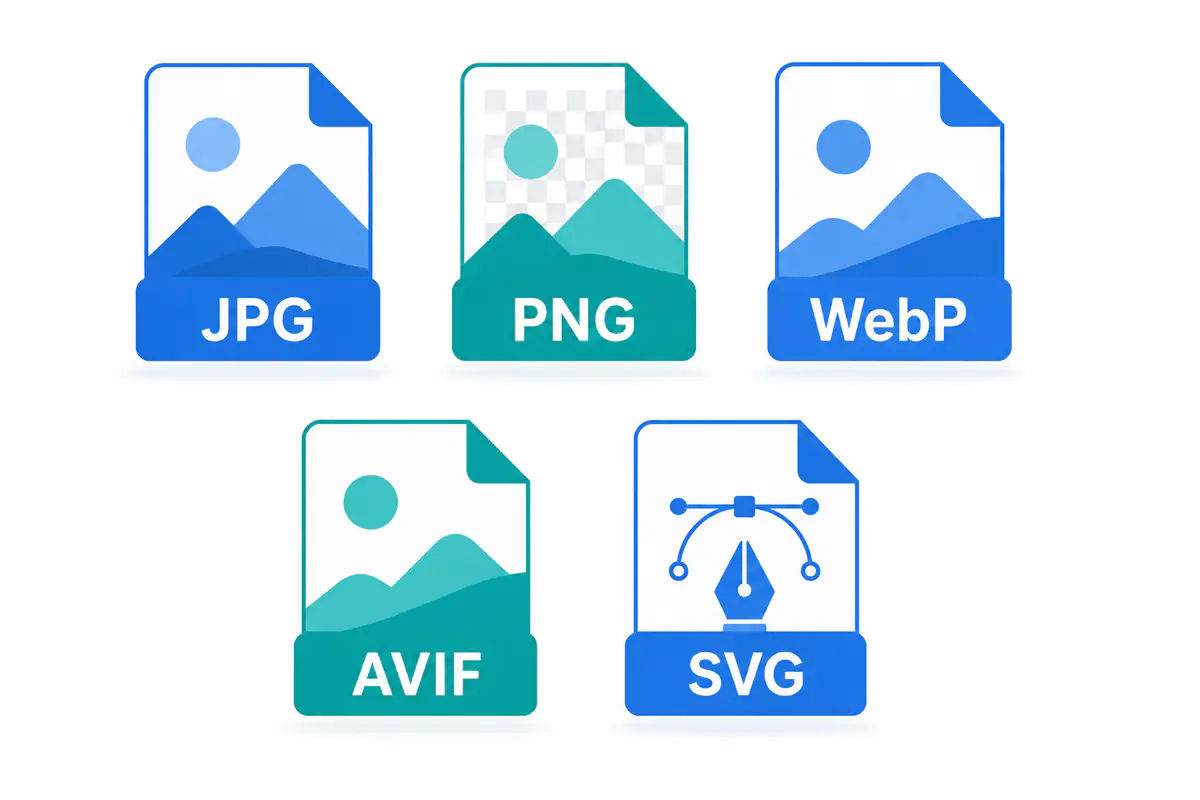
Image file formats decide how a picture is stored, how big the file is, and how good it looks. There are more than a dozen in common use, and each one was built for a different job. Pick the right one and your image loads fast and stays sharp. Pick the wrong one and it turns out bloated, blurry, or won't open at all.
Most people only ever deal with a few, like JPG and PNG, but knowing what the others do helps you choose better. Some are made for photos, some for logos, some for print, and some for saving every last detail from a camera.
This guide explains every common image format in plain terms, what each is best at, and how to tell which one you should be using.
Two Things That Define Every Format
Before the formats themselves, two ideas explain the differences between all of them.
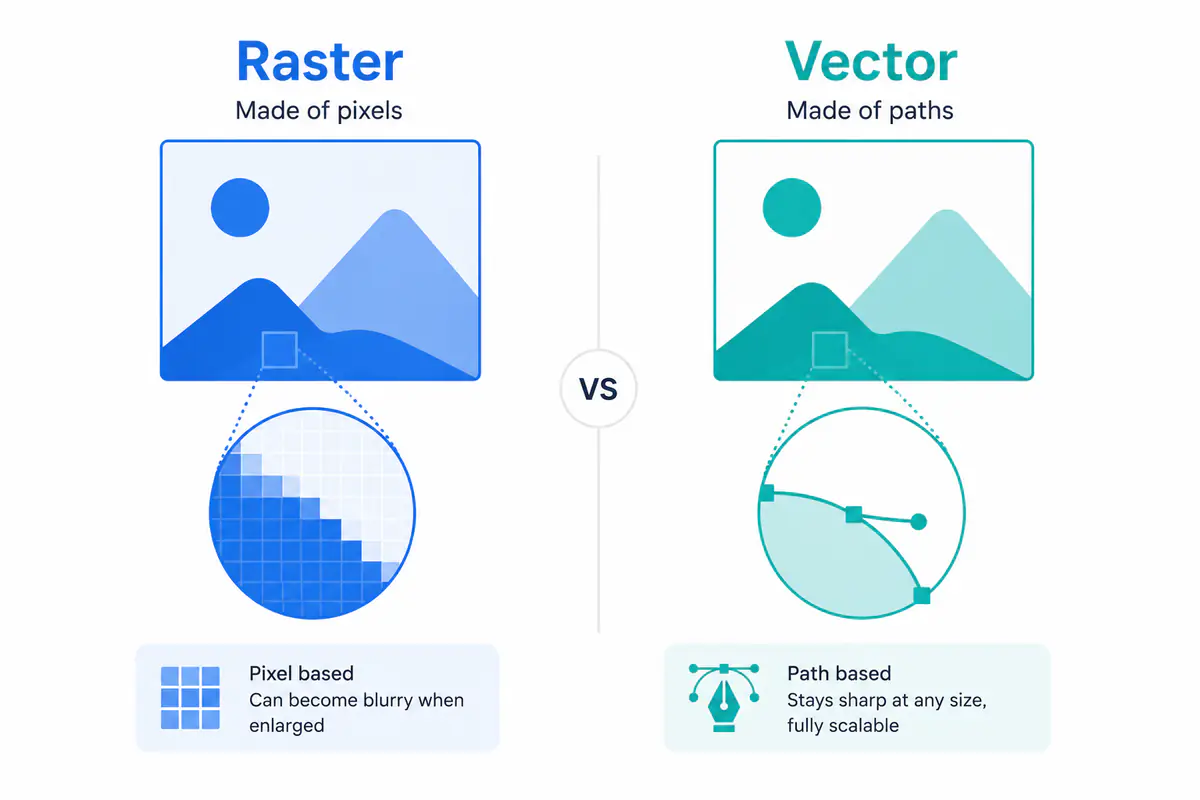
Raster vs vector. Raster images are made of pixels, a grid of tiny colored squares. Photos, screenshots, and most web graphics are raster. Zoom in far enough and you see the squares, which is why a raster image gets blurry when you enlarge it past its real size. Vector images are different. They're built from math, using points and lines, so they scale to any size without losing sharpness. That's why logos and icons are usually vector.
Lossy vs lossless. Lossy compression shrinks a file by throwing away detail your eye is least likely to notice. It makes small files, but each save loses a little quality. JPG is lossy. Lossless compression keeps every pixel exactly, so nothing is lost, but the files are larger. PNG is lossless.
Almost every format is some mix of these. Knowing which camp a format falls into tells you most of what you need, whether it's good for a photo, a logo, or an archive you can't afford to degrade.
The Everyday Web Formats
These are the formats you'll meet on almost any website or phone.
JPG / JPEG
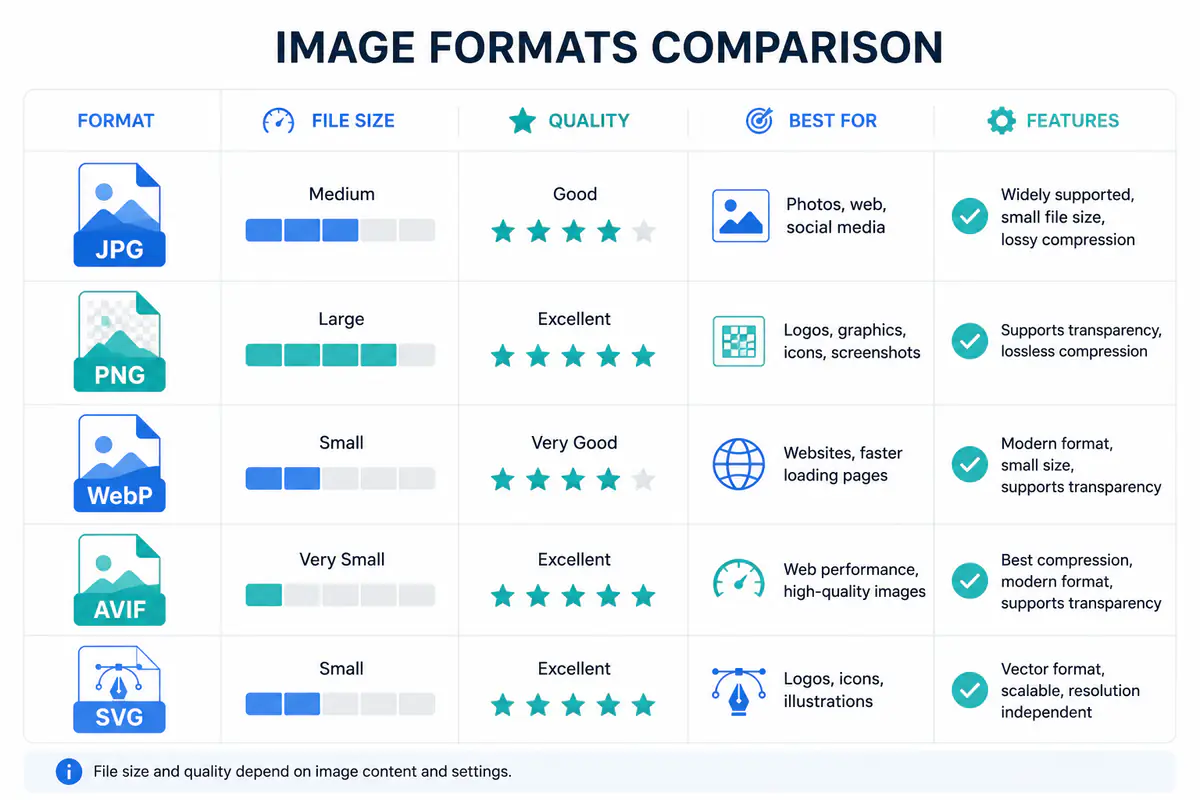
The most common photo format anywhere. JPG uses lossy compression to make small files that still look good, which is why cameras and websites lean on it. It has no transparency and loses a little quality each time you re-save it, but for photographs it's hard to beat. JPG and JPEG are the same format with two spellings.
PNG
The go-to for graphics. PNG is lossless, so it keeps perfect quality, and it supports transparent backgrounds. That makes it ideal for logos, icons, screenshots, and anything with sharp text or edges. The downside is size, since PNG files are much larger than JPG, so it's a poor choice for full photos.
WebP
Google's modern all-rounder. WebP does both lossy and lossless, supports transparency, and even handles animation, while producing files 25 to 35 percent smaller than JPG. Every current browser supports it, which is why most sites have switched to it for web images.
AVIF
The newest and smallest. AVIF compresses better than anything else in wide use, roughly half the size of a JPG at the same quality, with support for transparency and HDR color. All major browsers now open it. Its one quirk is that an image has to fully download before it appears, so very large AVIFs can feel slower to load.
GIF
The old animation format. GIF is limited to 256 colors and makes large files, so it's poor for photos. It survives for one reason: short looping animations. For anything still, or for better-quality animation, WebP has largely replaced it.
Vector and Specialized Formats
Beyond the everyday formats, a few others handle specific jobs.
SVG
The main vector format for the web. Because SVG is built from math rather than pixels, it scales from a tiny icon to a billboard with no loss of sharpness, at a tiny file size. It's perfect for logos, icons, and simple illustrations, but not for photos, which are too detailed to describe as shapes.
HEIC
Apple's photo format, and what your iPhone uses by default. HEIC stores photos at high quality in about half the size of a JPG. The catch is support: it works well across Apple devices but not much else, so Chrome, Firefox, and many websites can't open it. It's usually best to convert HEIC to JPG before sharing widely.
TIFF
The professional print and archive format. TIFF is lossless and can hold huge amounts of detail, which is why print shops and photographers rely on it. The files are very large, so it's meant for storage and printing, not for the web.
RAW
Not one format but many, one per camera brand. A RAW file is the unprocessed data straight off the camera sensor, holding maximum detail for editing. Photographers edit in RAW, then export to JPG or another format to share. RAW files are large and need special software to open.
BMP
An old, uncompressed Windows format. BMP keeps full quality but at enormous file sizes, since it does no compression at all. It's rarely used now, replaced by PNG for lossless needs.
All Formats at a Glance
Format | Type | Compression | Transparency | Best for |
|---|---|---|---|---|
JPG | Raster | Lossy | No | Photos |
PNG | Raster | Lossless | Yes | Logos, screenshots |
WebP | Raster | Both | Yes | Web images |
AVIF | Raster | Both | Yes | Smallest web files |
GIF | Raster | Lossless | Yes | Simple animation |
SVG | Vector | Lossless | Yes | Logos, icons |
HEIC | Raster | Lossy | Yes | iPhone photos |
TIFF | Raster | Lossless | Yes | Print, archiving |
RAW | Raster | None | No | Camera editing |
BMP | Raster | None | No | Legacy, rarely used |
The pattern is easy to read off the table. Raster for photos, vector for logos, lossy for small files, and lossless for perfect quality.
Which Format Should You Use?
Match the format to the job and you rarely go wrong.
For photos on a website, use WebP or AVIF. Both give you small, fast-loading files at high quality. WebP is the safe default, and AVIF goes even smaller if you want the absolute lightest files.
For photos you're sharing or storing, use JPG. It opens everywhere with no compatibility worries, which makes it the safe pick for email, uploads, and handing files to other people.
For logos, icons, and simple graphics, use SVG. It scales to any size without blurring. If you need a raster version instead, use PNG.
For screenshots and anything with text or transparency, use PNG. It keeps edges crisp where JPG would smear them.
For editing camera photos, start from RAW, then export to JPG or WebP to share. For professional print, use TIFF.
If your decision is really just between the three most common formats, our guide on JPG vs PNG vs WebP compares them in more depth.
Keep editing formats separate from delivery formats
A camera RAW file, layered design document, or print TIFF is a working master. JPG, WebP, AVIF, and optimized PNG files are usually delivery copies. Trying to use one format for both jobs leads to lost layers, oversized downloads, or repeated compression.
Keep the master in the format your editing workflow needs. Export a new file for the destination and retain the master for future changes.
Related ExtractPics guides
- JPG vs PNG vs WEBP: Which Image Format Is Better?
- How to Convert PNG to JPG (and JPG to PNG)
- How to Compress Images Without Losing Quality
- How to Save Images Without Losing Quality
Sources and verification
This article was reviewed against the following primary documentation and standards in August 2026:
- MDN: image file type and format guide
- JPEG Committee: JPEG 1 standard overview
- W3C: Scalable Vector Graphics (SVG) 2
- Google for Developers: WebP image format
Choose by content and destination
Photos, transparent graphics, vectors, animations, and editable masters have different needs. Start with what the image contains, then check where it must open and how small it needs to be. For most web work, JPG, PNG, WebP, and SVG cover the common cases. Keep RAW and TIFF files for workflows that genuinely need them.
