Embedded PDF images vs rendered pages: what is the difference?
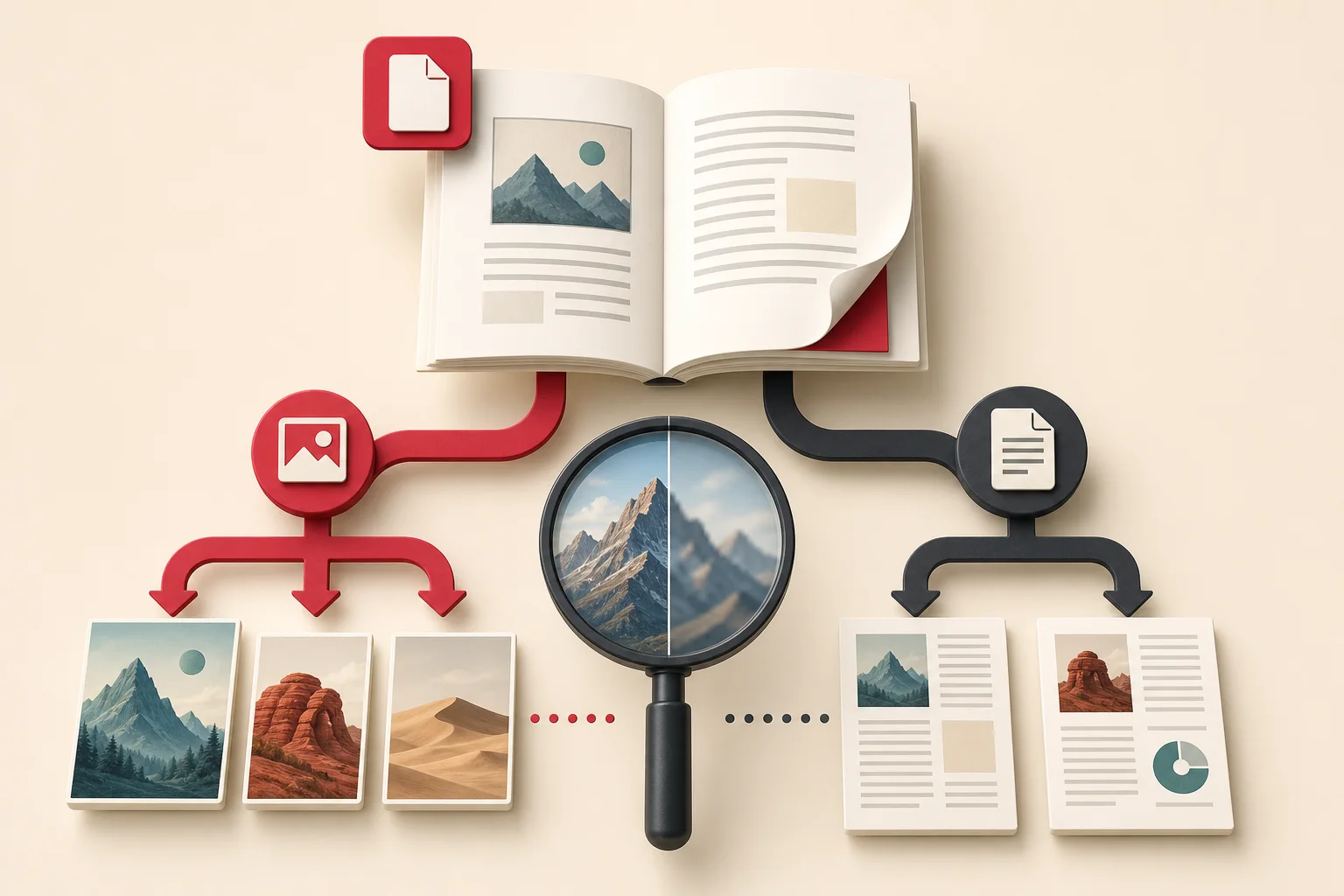
"Extract images from a PDF" can describe two different jobs. One method pulls image objects stored inside the file. The other draws each complete page and saves that page as a new bitmap. Both produce images, but they preserve different information.
Embedded extraction is useful when you need the original photographs or scanned pieces stored in a document. Page rendering is useful when you need the page exactly as a reader sees it, including text, vectors, backgrounds, annotations, and layout.
Choosing the wrong method causes familiar problems: tiny fragments instead of complete diagrams, a rendered screenshot when you wanted the camera photograph, missing masks, or pages that look blurry because the render resolution was too low.
Think of a PDF as drawing instructions
A PDF page is not necessarily one flat image. It can combine:
- Text glyphs
- Vector paths
- Raster image objects
- Clipping paths
- Transparency masks
- Gradients and patterns
- Forms reused across pages
- Annotations and optional layers
A viewer interprets these pieces and paints the final page. Embedded extraction looks for certain stored objects. Rendering asks the viewer to paint everything onto a pixel canvas.
What embedded image extraction returns
An extractor can locate raster objects inside the PDF and save their encoded data or a decoded equivalent. A photograph used on a page may come out near its stored resolution without surrounding text.
This is valuable for:
- Recovering photos from reports you own
- Extracting scans from archival documents
- Reusing authorized product images from a generated catalog
- Inspecting compression and color space
- Separating image assets from page layout
The output may not match what you expect visually. One visible picture can be assembled from several objects, use a separate mask, or be clipped to a shape.
What page rendering returns
Rendering converts a complete page into an image at a chosen scale or DPI. Everything the viewer paints becomes part of one raster file.
This is useful for:
- Creating page thumbnails
- Preserving complex diagrams as they appear
- Sharing a page preview
- Running OCR on a full scanned page
- Comparing visual layout
- Archiving an exact rendered state
The cost is that text and vectors become pixels. You cannot recover the original photograph separately from the rendered page, and quality depends on the chosen render resolution.
A simple comparison
| Question | Embedded extraction | Page rendering |
|---|---|---|
| Keeps page layout | No | Yes |
| Can recover a photograph alone | Often | No, unless cropped afterward |
| Keeps text selectable | Not applicable to output | No |
| Preserves vector sharpness | Only if extracted separately as vector content | Rasterized at render resolution |
| Output count | Image objects | Usually one image per page |
| Best for | Asset recovery | Page appearance |
Neither method is universally better.
Why one visible image becomes several files
PDF generators optimize and compose content in different ways. A visible photograph might have a separate grayscale soft mask for transparency. A chart can contain raster shading plus vector labels. A scanned spread may be tiled into strips.
An embedded extractor can return those pieces individually. The results may include:
- Base color image
- Transparency mask
- Thumbnail preview
- Repeated logo object
- Tiled scan segments
- Background texture
If your goal is visual appearance, rendering avoids the reconstruction work. If your goal is source recovery, inspect object dimensions, color space, masks, and placement before discarding "extra" files.
Soft masks and transparency
A PDF can store an image's color data separately from its alpha or soft mask. A naive extraction may produce a solid rectangle or a second grayscale image.
A capable tool can combine them. When validating output, compare transparent edges, shadows, and faded regions with the PDF viewer. Save to a format that supports alpha, such as PNG, WebP, or an appropriate TIFF workflow.
Do not convert transparency to JPG unless adding a background is intentional.
Vector artwork is not an embedded raster image
Logos, diagrams, and illustrations may be vector paths. An "extract images" command can return nothing for them because no raster image object exists.
Options include:
- Exporting the vector object through the authoring application
- Converting the relevant page or region to SVG with a trusted tool
- Rendering at sufficient resolution
- Recovering the original source file from the document owner
A screenshot is the least flexible choice. It is acceptable for visual reference but not a replacement for an authorized vector master.
Scanned PDFs
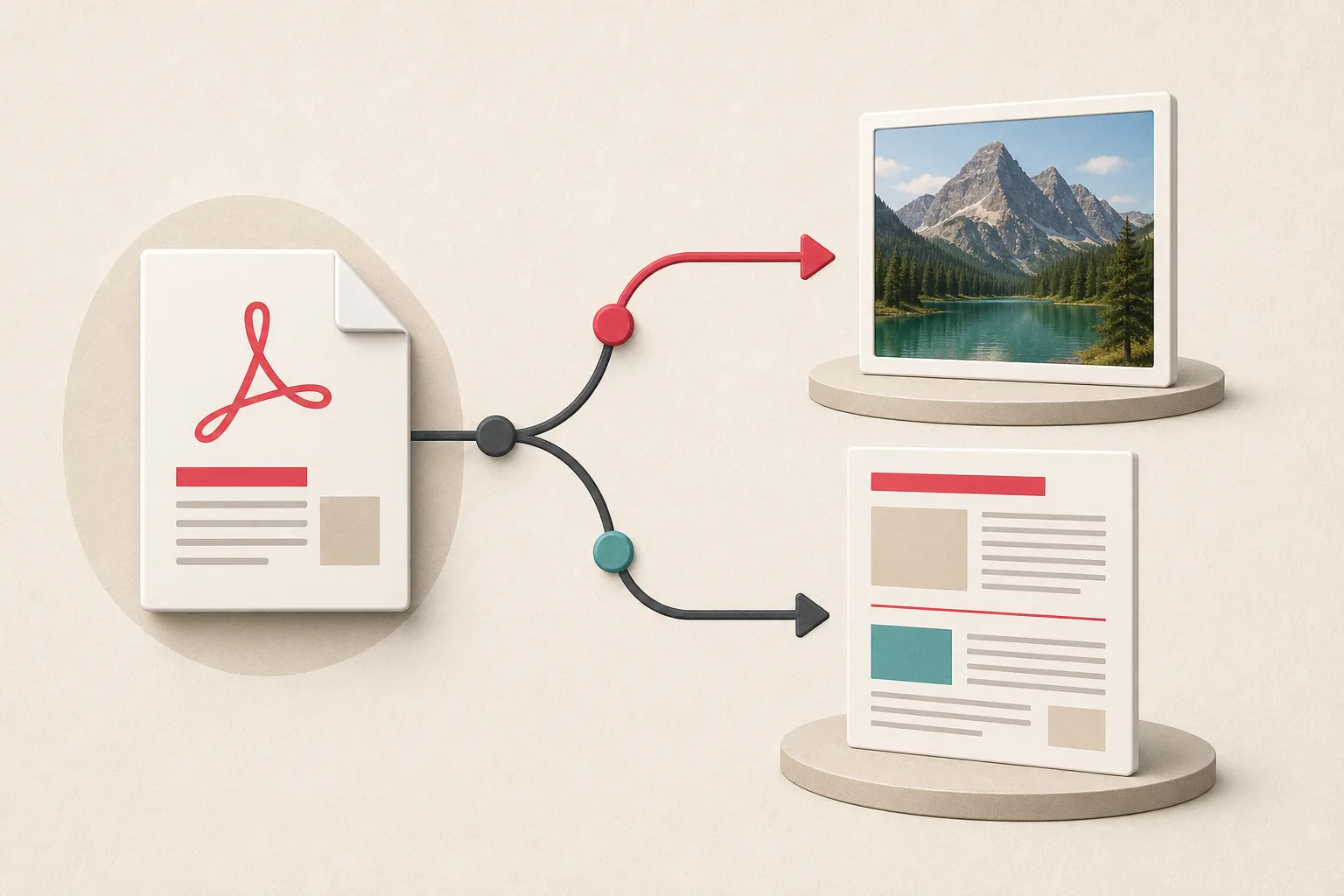
A scanned PDF often contains one large raster image per page, sometimes with an invisible OCR text layer. Embedded extraction can recover the scan object. Rendering creates a new image of the scan plus any visible annotations or overlays.
Compare dimensions. If the stored scan is 2,500 by 3,500 pixels and a default page render is 1,275 by 1,650, extracting the embedded scan preserves more detail.
However, a scanner or PDF optimizer can tile, downsample, or recompress pages. Inspect representative files before choosing a bulk method.
Render resolution and DPI
A PDF page has physical dimensions expressed in points. Rendering at a higher DPI creates more pixels.
For a US Letter page:
- 72 DPI produces roughly 612 by 792 pixels.
- 150 DPI produces roughly 1,275 by 1,650 pixels.
- 300 DPI produces roughly 2,550 by 3,300 pixels.
Higher DPI increases processing time, memory, and file size. It does not improve an embedded photograph beyond its stored detail. It only gives vector and text content more raster pixels.
Choose based on purpose. Screen thumbnails need less. OCR and print-oriented review may need more.
Effective resolution of an embedded image
An image object can be large but placed into a small region on the page. Its effective DPI depends on stored pixels and physical display size.
If a 1,200-pixel-wide image is placed four inches wide, it has an effective resolution of about 300 pixels per inch. If stretched twelve inches wide, it is about 100.
This explains why some PDF photos look soft even when extracted dimensions seem substantial. The problem may already exist in the document design.
Compression inside PDFs
PDFs can store images with several compression methods. Photographs are often JPEG-compressed. Monochrome scans may use specialized compression. Optimizers can downsample images during export.
Embedded extraction can sometimes preserve the encoded stream without another lossy conversion. Rendering always creates a new raster representation and usually requires a new output encoding.
For quality-sensitive recovery, avoid rendering a JPEG-heavy page to JPG repeatedly. Extract the source object when possible, or render once to a lossless format before further processing.
Color spaces
PDF image objects may use RGB, CMYK, grayscale, indexed color, or embedded profiles. A quick converter can shift colors or produce files that ordinary software handles poorly.
For print documents and product catalogs, validate representative colors. Keep the original PDF and document the conversion settings. Do not discard a CMYK source merely because a browser preview looks different.
Cropping a rendered page is not extraction
Cropping a page render can isolate the visible region of a photo, but it includes only the pixels shown at the selected render resolution. It also bakes in clipping, overlays, and page effects.
This can be the right result when the composed region is the artifact you need. It is not the same as recovering the underlying file.
A decision workflow
Ask these questions:
- Do I need the complete page or individual assets?
- Is the target a raster photograph, scan, vector diagram, or mixed composition?
- Do masks or overlays affect its appearance?
- Does the embedded object have more resolution than a practical page render?
- Do I need searchable text or only a visual image?
- What color and transparency must be preserved?
- Do I have permission to extract and reuse the material?
Then test one representative page with both methods.
A practical extraction test
For a PDF you own:
- Record the page count and file hash.
- Extract embedded raster objects.
- Render the same sample pages at a documented DPI.
- Compare output count, dimensions, masks, crop, and color.
- Identify which output matches the actual goal.
- Run the chosen method on the full document.
- Keep an error and exception report.
The existing guide to extracting images from a PDF covers everyday tools and workflows. This article explains the quality decision behind them.
Handling repeated objects
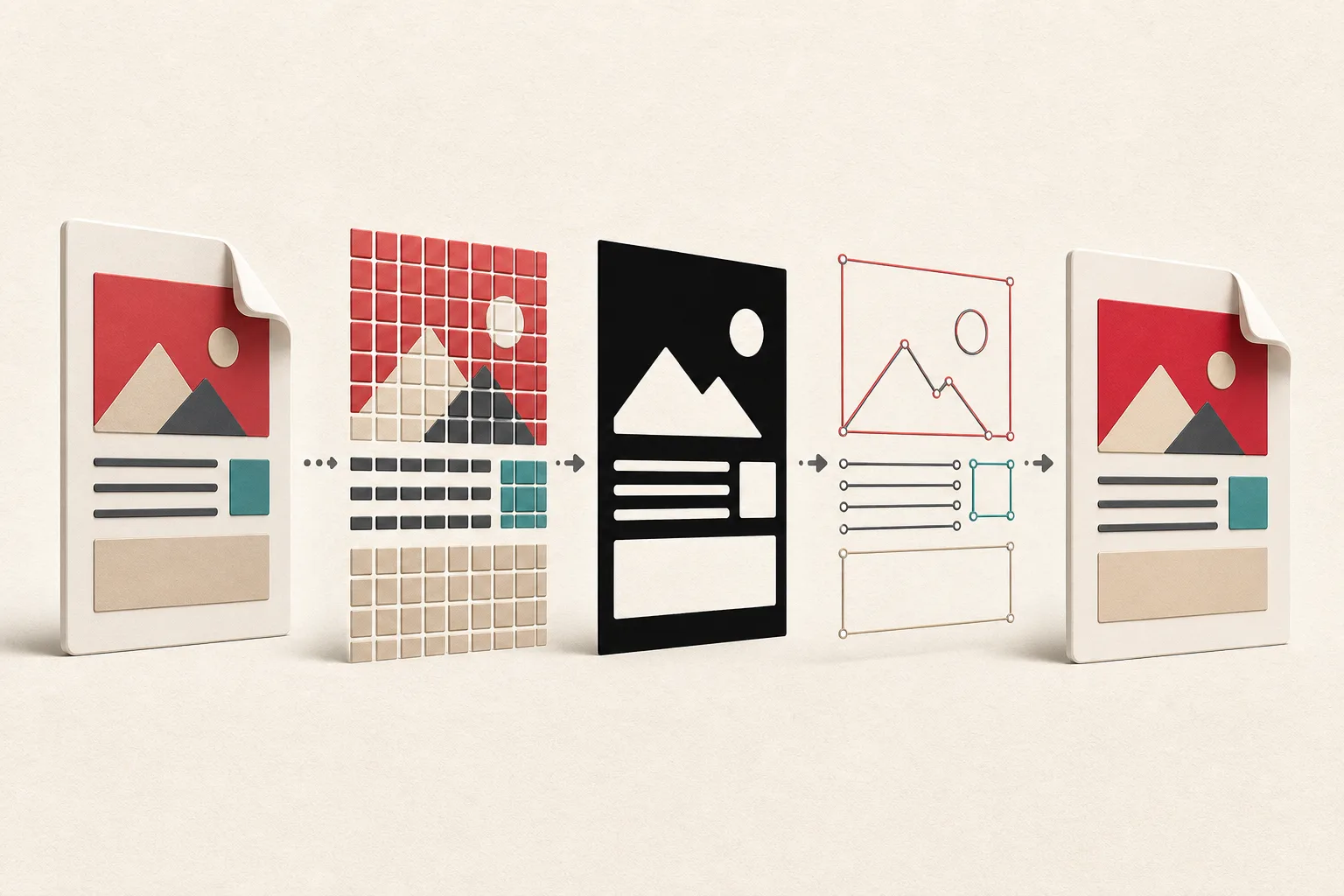
A logo can be stored once and reused across dozens of pages. An extractor may return it once, while a page renderer includes it on every page.
That is expected. For an asset inventory, store one master with many page occurrences. For page thumbnails, repeated rendering is correct.
Use the duplicate image guide if a large extraction produces repeated or visually similar outputs.
Passwords, permissions, and damaged files
Some PDFs are encrypted or restrict operations. Use the document password and permitted workflow supplied by the owner. Do not try to bypass controls.
Damaged cross-reference tables or malformed objects can cause partial extraction. A viewer may recover enough to display the page while an extractor fails. Keep the error, try a trusted repair workflow on a copy, and compare page counts and checksums.
Never overwrite the only PDF during repair.
Metadata and sensitive content
Extracted images can reveal information not obvious in a normal page view, including uncropped regions, hidden layers, signatures, faces, or metadata. Treat document recovery as potentially sensitive.
Store outputs securely and review them before publication. Remove private metadata only through a documented copy workflow, while preserving the original archive.
File naming and manifests
Bulk output becomes confusing quickly. Store:
- PDF filename and hash
- Page number
- Object number when available
- Extraction or rendering method
- Output dimensions and format
- Mask relationship
- Review status
Do not name every output image1.jpg. A manifest makes exceptions and reconstruction possible.
Quality checks
Inspect:
- Fine text and labels
- Transparent edges
- Gradients
- Skin and fabric texture
- Color consistency
- Missing tiles
- Rotated pages
- Crop boundaries
- File corruption
Compare the first, middle, and final pages plus known complex examples. Do not judge a 500-page run from page one alone.
Interlinking with other file workflows
PowerPoint and Word files also store media separately from rendered page or document appearance. The PowerPoint image extraction guide and existing Word image extraction guide use a related package-recovery idea.
The formats differ, but the same question applies: do you need original embedded assets or a flattened visual representation?
Copyright and authorization
Owning a PDF file does not automatically grant rights to republish every photograph inside it. Reports can contain licensed stock, client material, charts from other publishers, and personal data.
Extract files you own or are authorized to recover. Preserve credits and license records. For uncertain images, use the source and license checklist.
Choose the output that matches the job
Embedded extraction and page rendering answer different questions. One asks, "What raster objects are stored here?" The other asks, "What should this page look like when drawn?"
Try both on a page that contains a photograph, text, and a vector element. The difference becomes obvious quickly. Use the object files for source recovery and a deliberate page render for faithful appearance. Keep the PDF untouched and log the method, page number, and settings; otherwise a folder of numbered outputs becomes impossible to explain later.
Related posts
How to Extract Images From a PDF
Why extracted images look blurry and how to find the original
A practical guide to finding the full-resolution file when a website gives you a soft thumbnail, compressed preview, or undersized responsive image.
How to extract original images from a PowerPoint file
Recover the actual files embedded in a presentation, understand when PowerPoint compresses them, and preserve usable quality.