How to Extract Images From a PDF

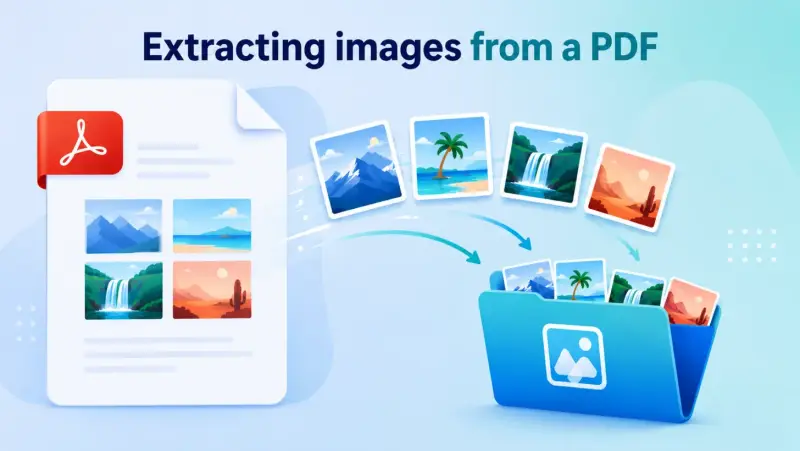
PDFs are great for sharing documents, but getting a picture back out of one isn't always obvious. The good news is that you can extract images from a PDF without any special skills, and often without paying for software. The only thing that matters is choosing a method that keeps the image at full quality instead of a shrunken copy.
In this guide you'll find a few simple ways to get images out of any PDF: using Adobe Acrobat, a free online tool, and Photoshop. Pick whichever fits what you have, and follow the steps to save your images sharp and ready to use.
Method 1: Extract Images Using Adobe Acrobat
If you have Adobe Acrobat Pro, it has a built-in feature that pulls images out at their original quality. You can grab a single image or every image in the file.
Save one image
Open the PDF in Acrobat Pro.
Go to Tools → Edit PDF.
Click the image you want to select it.
Right-click it and choose Save Image As.
Pick a folder and save. The image comes out at full resolution.
Save every image at once
Go to Tools → Export PDF.
Choose Image as the format, then pick JPEG or PNG.
Tick the Export all images box. This is important, it pulls only the images instead of turning each page into a picture.
Click Export and choose where to save them.
Acrobat saves each image as its own file at the resolution stored in the PDF, so nothing gets shrunk. The one downside is that Acrobat Pro is paid, so if you don't have it, the free method below works just as well.
Method 2: Extract Images From a PDF Online (Free)
Don't have Acrobat? Plenty of free online tools can pull images out of a PDF right in your browser, with nothing to install. Most of them work the same way.
Search for a free "PDF image extractor" and open one you trust.
Upload your PDF, or drag and drop it onto the page.
Let the tool process the file. It finds the images automatically.
Download the images, usually as separate files or bundled in a single ZIP.
This is the quickest option when you just need the images and don't want to install anything. Look for a tool that says it keeps original quality, so your images don't come out smaller than they should.
Just be careful with private files. Anything you upload goes to someone else's server, so if the PDF is confidential, stick with Acrobat or Photoshop instead and keep it on your own computer.
Method 3: Extract Images From a PDF With Photoshop
If you have Photoshop, it has a neat trick: it can open the images stored inside a PDF directly, at their original resolution.
In Photoshop, go to File → Open and select your PDF.
The Import PDF window opens. At the top, switch from Pages to Images.
You'll see thumbnails of every image embedded in the PDF.
Click the ones you want (hold
Ctrl/Cmdto pick several), then click OK.Each image opens as its own document.
Save each one with File → Export → Export As, choosing PNG or JPG.
Because Photoshop reads the embedded images directly, you get them at full quality, not a screenshot or a downscaled copy. This is a good choice when you only need a few specific images and want full control over how they're saved.
Bonus: Extract Images From a PDF Using Python
If you're comfortable with code and need to pull images from lots of PDFs automatically, Python makes it easy. The PyMuPDF library does the job in a few lines.
First, install it:
pip install pymupdf
Then run this script, swapping in your file name:
import fitz # PyMuPDF
pdf = fitz.open("yourfile.pdf")
for page_number in range(len(pdf)):
for index, img in enumerate(pdf[page_number].get_images(full=True)):
xref = img[0]
image = pdf.extract_image(xref)
with open(f"image_{page_number+1}_{index+1}.{image['ext']}", "wb") as file:
file.write(image["image"])
This loops through every page, finds the embedded images, and saves each one in its original format and quality. It's ideal for batch jobs where clicking through a tool for each file isn't practical.
Which Method Should You Use?
All four get your images out at full quality, so it comes down to what you have and what you need:
Just need it fast, no software? Use a free online tool.
Have Adobe Acrobat? It's the cleanest way to export one image or all of them at once.
Need only a few specific images, with control? Open the PDF in Photoshop.
Dealing with lots of PDFs? The Python script handles them in bulk.
PDF is private or confidential? Skip online tools and use Acrobat or Photoshop, so the file stays on your computer.
Whichever you pick, always check that the saved image matches the original size and sharpness before you delete the PDF.
Embedded image or rendered page?
A PDF can contain separate image objects, a scan of an entire page, vector artwork, masks, or several layers that only make sense when rendered together. An extractor may return the original object, while exporting the page creates a new image of the finished layout. Those are different results.
Use object extraction when you need the embedded photo. Render the page when the visible composition matters. For confidential PDFs, use desktop software rather than uploading the file to an unknown service.
Related ExtractPics guides
- How to Save Images Without Losing Quality
- How to Extract Images From a Word Document
- How to Convert PNG to JPG (and JPG to PNG)
- Is It Legal to Download Images From the Internet?
Sources and verification
This article was reviewed against the following primary documentation and standards in August 2026:
- Adobe Acrobat: reusing PDF content
- Adobe Acrobat: export PDFs to other formats
- U.S. Copyright Office: copyright for visual artists
Decide what you are trying to preserve
Use Acrobat or another object-aware tool for an embedded photograph. Export or render the page when text, vectors, masks, and placement belong together. Compare the output dimensions with the PDF before accepting it, and keep the source document. Extraction does not grant reuse rights for images that belong to another creator.
