How to reuse images from old worksheets and slides in a new quiz

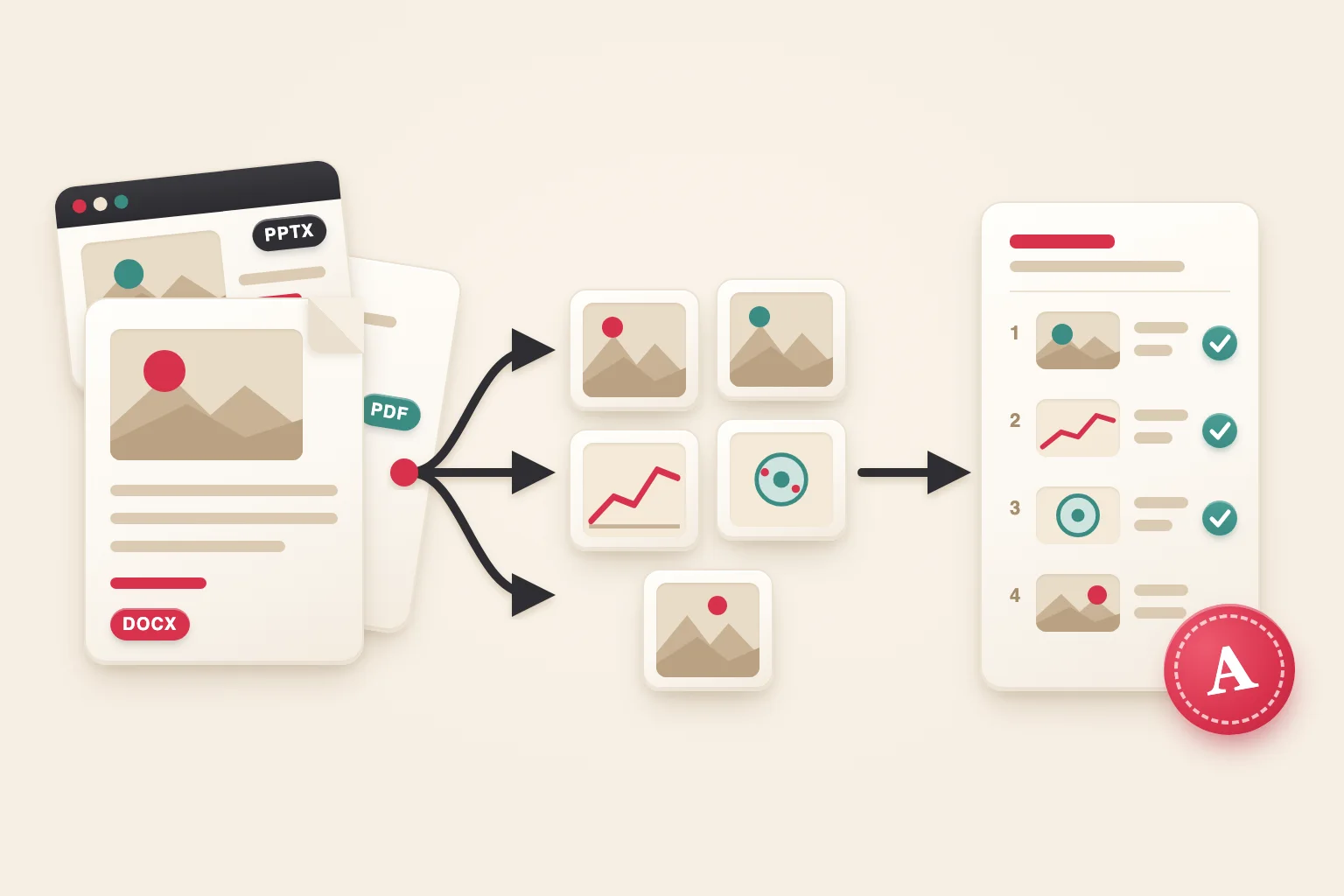
If you have taught the same subject for a few years, you already own most of the pictures your next quiz needs. They're just stuck inside old files: a labeled cell diagram in a 2019 worksheet, a map on slide 14 of last spring's unit deck, a graph somewhere in a PDF review packet.
Getting them out is where people go wrong. The quick fix is a screenshot, and it looks fine on screen. Then it goes through the school copier and comes out soft and gray, with labels you can barely read.
Below is how to pull the original image files out of the formats teachers deal with most, and how to check they will print cleanly. The last step is about grading, because a little planning while you build the quiz saves a lot of arithmetic later.
One thing before you start. Pictures you made yourself, or that came with a curriculum your school pays for, are usually fine to reuse in class. Publisher artwork and stock photos pulled from a colleague's shared folder are a different story. If you can't tell where an image came from, our guide to checking an image's source and license will help you find out.
Step 1: Copy the source files into one folder
Make a working folder for the new quiz and copy your old files into it. Copy, don't move. A couple of the methods below involve renaming a file, and you don't want to do that to the only version of a worksheet you still hand out.
I keep three subfolders: sources for the copied files, extracted for everything I pull out, and quiz for the handful of images that actually make the cut.
Step 2: Pull the original images out of each file type
Word worksheets (.docx)
A .docx file is really a ZIP archive with a different extension. Rename your copy from worksheet.docx to worksheet.zip, extract it, and open word/media. Every picture in the document is sitting there at the resolution it was saved, which is almost always sharper than a screenshot of the page.
Turn on visible file extensions first. Otherwise your computer may quietly name the file worksheet.docx.zip and nothing will open. The full walkthrough, including older .doc files, is in how to extract images from a Word document.
PowerPoint decks (.pptx)
Same trick: rename a copy to .zip, extract it, and look in ppt/media. If you cropped a diagram on the slide, the media folder has the uncropped original. That can be handy, since the full version sometimes includes labels you trimmed off for the lesson. If you'd rather keep the crop, right-click the picture in PowerPoint and choose Save as Picture.
The media folder can also contain what look like duplicates. How to extract original images from a PowerPoint file explains why and how to sort them.
Google Slides and Google Docs
In Google Slides, go to File > Download > Microsoft PowerPoint (.pptx) and then use the ZIP method above. In Google Docs, use File > Download > Web Page (.html, zipped). The download includes an images folder with every picture in the document.
Drawings and images that Google shrank on upload behave a little differently. Our guide to extracting images from Google Docs covers those.
PDF review packets
PDFs come in two kinds, and it matters which one you have. A PDF exported from Word or Slides usually stores each picture as its own embedded file, so you can pull it out at full quality. A scanned packet is different. Each page is one big photo, and the diagram you want is just a patch of it that you will have to crop.
Embedded PDF images vs rendered pages shows how to tell them apart. For the extraction itself, see how to extract images from a PDF.
Your class website or a public resource page
For images on a public page, like your own class site or an open museum collection, paste the URL into the ExtractPics image extractor. It finds every image on the page, including lazy-loaded ones and the larger files hiding behind thumbnails.
It can't see pages behind a login, and that includes most learning management systems, because it can't sign in as you. For those, open the page in your own browser and use the ExtractPics Chrome extension, or download the original file the course page links to.
Step 3: Rename what you keep and note where it came from
Extraction hands you files called image7.png, which mean nothing a week later. When you copy an image into the quiz folder, name it after the question it belongs to, like q03-plant-cell-labeled.png or q12-velocity-graph.png.
Then add a plain text file listing where each one came from. It takes two minutes, and next year, when a colleague asks to borrow the quiz, you will know which pictures are yours to share and which belong to the textbook publisher.
Step 4: Make sure the images will print well
Printing needs more pixels than a screen. A common rule of thumb is about 300 pixels per inch of printed size. A diagram printed 3 inches wide wants roughly 900 pixels across. If yours is 400 pixels wide, it will look soft on paper no matter how you export it.
When an image is too small, go back to the source instead of enlarging it. The copy in a PowerPoint media folder or on the original web page is often bigger than the one you first grabbed. Why extracted images look blurry goes through the usual causes.
Keep diagrams, charts and anything with small text labels as PNG. JPG compression smudges thin lines and tiny letters. Photos are fine as JPG. JPG vs PNG vs WebP has the details.
Step 5: Build the quiz, and plan the grading while you're at it
Once the images are separate files, making a second version of the quiz is easy. Shuffle the question order, or pair the same diagram with a different question, without hunting for pictures again.
The step most of us skip is deciding the point values before printing. It feels like something to sort out later. But if you know now that the quiz is out of 23 points, you can print an EZ grader chart for a 23-point test and clip it to your answer key. It lists the percentage for every possible score, so when the stack comes back you look each one up instead of dividing 17 by 23 thirty times.
If the quiz also goes out online, give each image short alt text, such as "Plant cell with nucleus, chloroplasts and cell wall labeled A to D". Students using screen readers then get the same question everyone else does. Our guide to exporting image URLs and alt text shows how to check alt text across a whole page.
Quick checklist
- Work on copies of your old files, in one folder.
- Pull images from the file package (
word/media,ppt/media, Google's zipped HTML), not from screenshots. - Check whether each PDF has embedded images or scanned pages.
- Name images by question number and write down where each came from.
- Aim for about 300 pixels per printed inch. Use PNG for diagrams.
- Fix the point total before printing and keep a grading chart with the key.
The first time, this takes longer than grabbing screenshots. The payoff comes the following year, when you open the folder and most of the new quiz is already there.
