How to Extract an Image URL From a Website

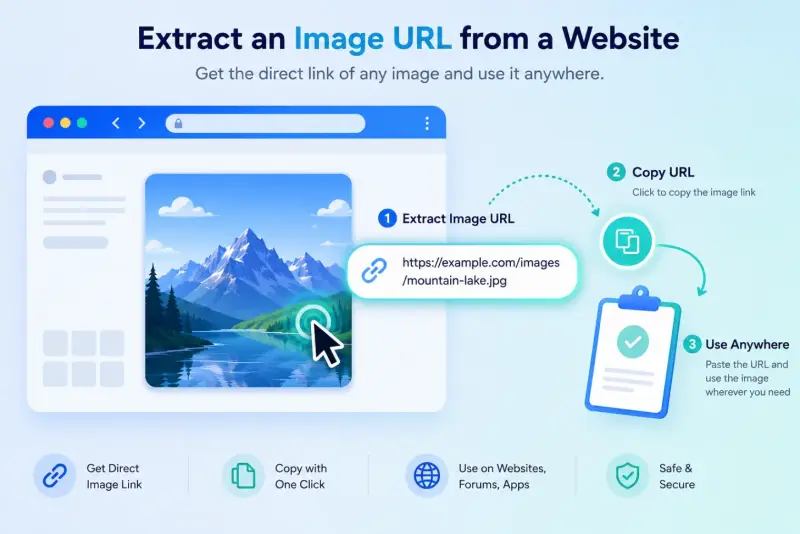
Sometimes you don't need to download a picture, you just need its link. If you want to extract an image URL from a website, that's the direct web address that ends in something like .jpg, .png, or .webp and points straight to the image file. It's handy for embedding a photo somewhere, sharing it without saving a copy, or pasting it into another tool that asks for an image link.
The tricky part is that the URL isn't always obvious. Some sites hide it behind scripts, others load images through a CDN with a messy address. This guide walks you through a few simple ways to grab the real image URL from any web page, starting with the quickest method and moving on to what to do when that doesn't work.
What Is an Image URL?
An image URL is the direct web address of a single image file. Instead of pointing to a whole page, it links straight to the picture itself, and it usually ends in a file type like .jpg, .png, .gif, or .webp.
Here's what one looks like:
https://example.com/images/sunset-photo.jpg
When you paste that link into a browser, you'll see only the image on a blank page, nothing else. That's how you know you've got the real image URL and not just the link to the page it sits on. This is the address you'll want whenever a tool, website, or post asks you to "add an image by URL."
Method 1: Right-Click and Copy the Image Address
For most images, this is the fastest way to get the URL, and it works in every major browser on a computer.
Find the image on the web page.
Right-click directly on it.
Choose Copy image address (in Chrome and Edge) or Copy Image Link (in Firefox).
Paste it anywhere you need, it's now on your clipboard.
That's it. To make sure you copied the right thing, paste the link into a new browser tab. If only the image loads on a blank page, you've got the correct URL.
One catch: a few sites give you a smaller preview link instead of the full-size original. If that happens, right-click the image and choose Open image in new tab first, then copy the address from the tab's address bar. That usually gives you the full-resolution version.
Method 2: Find the URL in the Page Source
If right-click is disabled or you want to dig out a specific image link, you can read it straight from the page's code. It sounds technical, but it only takes a few clicks.
On the web page, press
Ctrl + U(Windows) orOption + Cmd + U(Mac) to open the page source.Press
Ctrl + Fto search, and type.jpg,.png, or.webp.Look through the matches for the image you want. The link sits inside an
imgtag, usually aftersrc=.Copy the URL and paste it into your browser to confirm it's the right one.
Keep one thing in mind: some links in the source are relative paths, meaning they leave off the domain and look like /images/photo.jpg. To use one of these, add the site's address to the front, so it becomes https://example.com/images/photo.jpg.
Method 3: Use Browser Developer Tools
Some images load through scripts or background code, so they don't show up neatly in the page source. For those, the browser's built-in Developer Tools will catch them.
On the page, press
F12(or right-click anywhere and choose Inspect).Open the Network tab at the top.
Click the Img filter so it shows only image files.
Reload the page. Every image will appear in the list as it loads.
Click any image in the list, then copy its full URL from the details panel.
This method catches almost everything, including images that the other two methods miss. It's a little more involved, so it's best saved for when a stubborn image won't give up its link any other way.
Method 4: Use an Image Link Extractor (Easiest for Multiple Images)
The manual methods are great for one image, but they get slow when you need the URLs for several pictures, or when a page hides its links behind code. This is where a dedicated tool saves you a lot of time.
Instead of digging through source code or the Network tab, you paste the page's address and let the tool pull the image links for you.
Copy the URL of the web page that has the images.
Open the .
Paste the page URL and run it.
Copy the image links you need from the results.
If you want every image URL on the page at once, scans the whole page and lists them all in one go, no code required. And if you're still not sure how image links work, this short breaks it down.
Because these tools read the page directly, they pick up links that are easy to miss by hand, including images loaded through scripts.
Common Problems (and How to Fix Them)
Getting an image URL is usually quick, but a few things can trip you up. Here are the most common ones.
The URL doesn't end in .jpg or .png. Many sites now serve images through a CDN or a script, so the link can look long and messy with extra characters. That's normal. As long as the image loads on its own when you paste the link, it's the right one.
You only get a small, blurry version. You've copied the preview, not the original. Open the image in a new tab first, then copy the address from there to get the full-size file.
Right-click is disabled. Some sites block the menu on purpose. Use the page source method or an extractor tool instead, both ignore that restriction.
The link stops working later. A few platforms add a temporary token to their image URLs that expires after a while. In that case, you're better off downloading the image instead of relying on the link.
A URL is useful only if it is stable
Test the copied address in a private browser window. If it fails there, it may depend on your login, cookies, a referrer, or a short-lived signature. Do not share account-bound links, and do not assume a CDN URL will remain valid forever.
For an inventory or migration, store the page URL as well as the image URL. The page gives you context when a derivative URL expires or the site changes its CDN parameters.
Related ExtractPics guides
- How to Save an Image From a URL (Desktop, Mobile, and When Right-Click Fails)
- How to Extract Images From Any Website (Step-by-Step Guide)
- What Is an Image Scraper? How It Works, Common Uses, and Is It Legal?
- Why Downloaded Images Look Blurry and How to Fix It
Sources and verification
This article was reviewed against the following primary documentation and standards in August 2026:
Verify the address outside the page
Right-click is enough for a simple image. Use the Elements or Network panel when the page relies on responsive sources, CSS, or JavaScript. Then open the address by itself and confirm the file, dimensions, and access behavior. A tested URL with a recorded source page is far more useful than a link copied without context.
