How to Save an Image From a URL When Right-Click Fails

Got a link to an image and just want the actual file on your device? To save an image from a URL, you usually right-click it and choose Save image as — but only if the link points straight at the image, and only if the site lets you. Those two "ifs" are where most people get stuck, and they're the reason our save image tool skips the right-click menu entirely.
To do it in one step, paste the link into our download image from URL tool.
This guide fixes both. I'll show you how to save an image from a URL on a computer and on your phone, what to do when the link opens a webpage instead of the picture, and why the file keeps landing in your downloads as a .webp you can't open.
It takes about ten seconds once you know which kind of link you're holding. So let's start there.
First, check what your "URL" actually points to
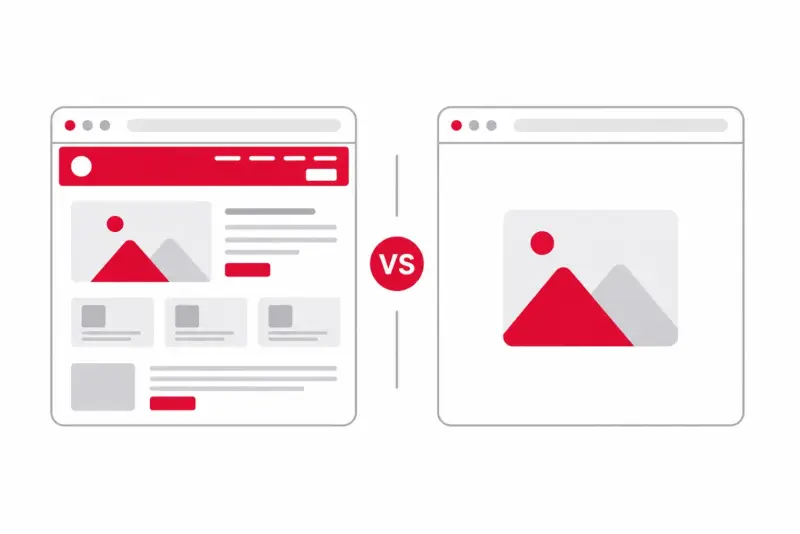
This one detail trips everyone up. A link can mean two different things:
A direct image URL ends in something like
.jpg,.png, or.webp. Open it and you see only the image on a blank background. This is the one you can save directly.A page URL is a normal webpage that happens to contain the image — a product page, a Pinterest pin, a blog post. Open it and you see a full site, not a bare image.
If you paste a page URL expecting the picture, you'll just save the webpage. So the first move is always: open the link and see what loads. A bare image? Save it. A whole page? You need one extra step, covered below.
If you've got the page but not the direct image link yet, our guide to getting an image URL walks through finding it.
Save an image from a URL on a computer
When the link opens the bare image, this is all it takes:
Open the image URL in your browser. You should see just the picture.
Right-click anywhere on the image.
Choose Save image as…
Pick a folder, rename the file if you want, and click Save.
That's it. The file lands in your downloads folder.
If you only have a page link — say a product photo on a shopping site — do this first:
Right-click the image on the page and choose Open image in new tab. (On some sites it's "Copy image address," which you then paste into a new tab.)
Now you're looking at the bare image URL. Right-click and Save image as…
Opening it in its own tab guarantees you grab the real file, not a thumbnail or a chunk of the page.
Save an image from a URL on your phone
Phones don't have a right-click, so it's a long-press instead.
On iPhone (Safari):
Open the image URL so the picture fills the screen.
Press and hold the image for a second until a menu pops up.
Tap Add to Photos (sometimes shown as "Save to Photos"). It lands in your Photos app.
If the image is hidden behind a link, long-press the link first, tap Open in New Tab, then long-press the image there. And if the hold does nothing, try pinching to zoom in slightly first — that often unlocks the save option on stubborn pages.
On Android (Chrome):
Open the image URL.
Press and hold the image.
Tap Download image. It saves to your Gallery or Downloads.
One thing worth knowing: saving an animated GIF this way usually flattens it to a single still frame. For the moving version you need the direct .gif link.
When right-click (or long-press) is blocked
Some sites disable the menu to stop you saving images. Annoying, but you've got options:
Open the direct image URL in a new tab. If you can get the bare image link, saving from that tab usually still works even when the original page blocks it. The Image Link tool pulls the direct link for you.
Take a screenshot. Lowest effort, lowest quality — fine for a quick reference, not for print or reuse.
Skip the manual route entirely. If you just want the file and the page is fighting you, paste the page into ExtractPics and grab the image from the results.
A fair warning: a site blocking downloads is sometimes a signal the owner doesn't want the image reused. Saving for personal reference is one thing; republishing someone's work is another.
Why does it keep saving as a .webp?
This catches a lot of people. You hit Save, expecting a JPG, and get a .webp file half your apps refuse to open.
Here's what's happening: your browser saves the image in whatever format the website serves. Loads of sites now serve WebP because it's smaller and loads faster, so that's what you get. Nothing's broken — the file just isn't the format you expected.
To end up with a JPG or PNG instead:
Open the image in a new tab, then save — on some sites this serves the original JPG.
Convert it after saving. Drop the
.webpinto any free image converter, or open it in an editor and re-export as JPG or PNG.On some platforms, adding
?format=jpgto the end of the image URL serves a JPG version. Hit or miss, but quick to try.
If you're deciding which format to keep things in, our JPG vs PNG vs WebP breakdown covers when each one makes sense.
Saving a whole page of images, not just one?
Everything above is for grabbing a single image from its link. If you're staring at a gallery or product page with dozens of images, doing them one at a time is painful.
For that, paste the page URL into ExtractPics and it returns every image at once — see the walkthrough on downloading multiple images at once. And if you want all the assets on a page (SVGs, icons, backgrounds, not just photos), the rip assets guide covers that.
Check the link before trusting the file
A direct image URL should open the file by itself and normally returns an image content type. A link that opens a full page, login screen, or error message is not a stable image address. Signed CDN links may also expire, so keep the original page URL when the file matters.
Never paste private, signed, or account-only URLs into a third-party downloader. Use the site's own download control for those files.
Related ExtractPics guides
- How to Extract an Image URL From a Website
- How to Download Images From Any Website
- How to Save Images Without Losing Quality
- Is It Legal to Download Images From the Internet?
Sources and verification
This article was reviewed against the following primary documentation and standards in August 2026:
- MDN: the HTML image element
- MDN: image file type and format guide
- U.S. Copyright Office: copyright for visual artists
Open, verify, then save
Open the URL in its own tab and check that it shows only the image. Verify the dimensions and format before saving. If the URL belongs to a page rather than a file, find the image address first. Keep the source page with the download, especially when the link is temporary or the image may be reused later.
