How to Rip Assets From Any Website (Images, SVGs & Backgrounds)

Ripping assets from a website just means pulling its files — images, SVGs, icons, background graphics — off the page and onto your machine. Sometimes you want one logo. Sometimes you want every image on a long gallery page. A free online image ripper can rip images from a website in seconds.
This guide covers how to rip assets from websites four different ways, from a two-click tool to a developer's Network tab. It's also honest about the one thing none of these methods can do, so you don't waste twenty minutes finding out the hard way.
Below I'll walk through ExtractPics, Chrome DevTools, browser extensions, and a copy-paste console snippet for the files the others miss. Pick the one that matches how technical you want to get.
What counts as an "asset"?
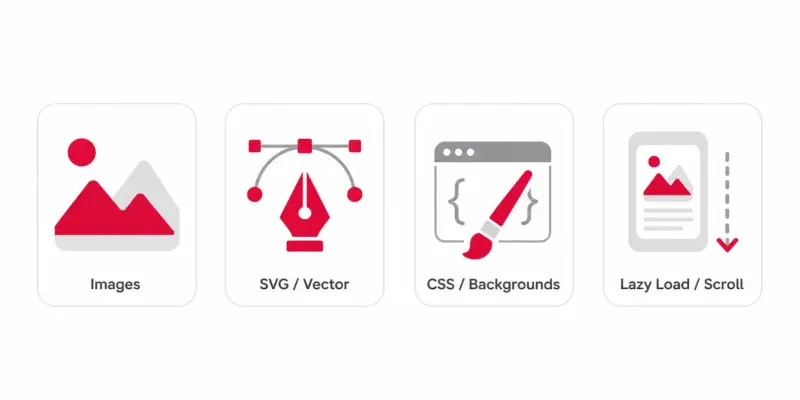
When people say they want to rip assets, they usually mean more than just the obvious photos. A typical page loads:
Photos and graphics — the
.jpg,.png, and.webpfiles in the content.SVGs and icons — logos, UI icons, and illustrations, often inline in the HTML.
CSS background images — banners and textures set in stylesheets, not
<img>tags.Lazy-loaded images — files that only appear once you scroll, hidden in
data-srcattributes.
That last two are where most simple "image rippers" fall short. A right-click only grabs what's already on screen. A real ripper has to scroll the page, read the CSS, and wait for the slow stuff to load. Keep that in mind as you compare the methods below.
Method 1: Rip images from a website in two clicks (no code)
If you just want the files and you don't care how, this is the fastest route. ExtractPics loads the page in a real browser, scrolls it, and pulls every image it finds — including the lazy-loaded and CSS-background ones a manual grab would miss.
Copy the URL of the page you want to rip.
Paste it into the box on the ExtractPics homepage and hit Extract.
Wait a few seconds while it scrolls and scans the page.
Filter the results by format or size if you only want some of them.
Copy all the URLs, or download everything as a single ZIP.
No signup, no extension, nothing to install. If you've got a whole batch of pages to do at once, the Bulk Extractor handles several URLs in one go.
Want just one file and its link instead of the whole page? The Image Link tool is built for that.
Method 2: Chrome DevTools (the developer's way)
No tool, no extension — just the browser you already have. This is more fiddly, but it's handy when you want to inspect exactly what a page is loading.
Right-click anywhere on the page and choose Inspect to open DevTools.
Click the Network tab.
Click the Img filter so you only see image requests, not scripts and fonts.
Reload the page (
Ctrl + R, orCmd + Ron a Mac). The list fills up with every image the page loads.Click the Size column to sort. The biggest files are almost always the full-resolution originals.
Right-click any request and choose Open in new tab to save it, or Copy → Copy link address to grab the URL.
The catch: you do this one file at a time, and you'll need to scroll the page first so lazy-loaded images actually fire. For a handful of files it's fine. For fifty, it's a chore — which is the whole reason tools exist.
Method 3: Browser extensions
There are plenty of one-click image grabbers in the Chrome Web Store. They add an icon to your toolbar, scan the open tab, and show every image as a thumbnail gallery you can pick from.
They're convenient, but a word of caution: only install highly rated extensions from the official store, and check what permissions they ask for. If an image downloader wants access to your browsing history, that's a red flag — close the tab and move on. I'd rather paste a URL into an online image downloader than hand a random extension permanent access to every page I visit.
If you want to compare the options first, we rounded up the best free image extractor tools in a separate post.
Method 4: A one-line snippet for the stubborn stuff
Need a quick list of every image URL on a page without any tool at all? Open the Console tab in DevTools, paste this in, and hit Enter:
console.log(
[...document.querySelectorAll('img')]
.map(img => img.currentSrc || img.src)
.join('\n')
);
It prints every <img> source as a clean list you can copy. It reads currentSrc first, so you get the actual resolution the browser chose from a srcset, not a tiny thumbnail.
Two honest limits: it won't catch CSS background images (those aren't <img> tags), and it only sees what's loaded right now, so scroll the page first. When you need the background and lazy-loaded files too, that's exactly the gap Method 1 fills for you automatically.
So which method should you use?
You want to... | Use |
|---|---|
Grab every image fast, no setup | ExtractPics (Method 1) |
Inspect what a page loads, file by file | DevTools (Method 2) |
A toolbar button you'll reuse daily | An extension (Method 3) |
A quick URL list with zero tools | Console snippet (Method 4) |
If you're not sure, start with Method 1. It catches the lazy-loaded and CSS files the manual methods skip, and you can always drop into DevTools when you want to see the guts of a page.
What you can't rip (and why that's fine)
Here's the part most guides skip. These methods pull public assets — the files a normal visitor's browser downloads to show the page. They do not break into anything.
Login-walled sites like private Instagram or Facebook accounts won't work. If you can't see a file without signing in, a ripper can't either.
Paywalled or DRM-protected media is off-limits by design.
Copyright still applies. Ripping a file isn't a license to reuse it. Grabbing competitor creatives for research is one thing; republishing someone's photo as your own is another. Stick to what you're allowed to use.
None of that is a flaw in the tools. It's just the line between a public asset and someone else's private or protected content.
Set a clear boundary
Use these methods for public files you own, licensed assets, compatibility checks, or an authorized migration. Do not use them to copy a competitor's design, bypass access controls, or republish a site's branding and artwork. Fonts, illustrations, icons, and code can carry separate licenses even when the browser downloads them to display a page.
If the goal is inspiration, record the page and create your own work. If the goal is recovery, confirm ownership before building the archive.
Related ExtractPics guides
- How to Extract Images From Any Website (Step-by-Step Guide)
- How to Extract an Image URL From a Website
- What Is an Image Scraper? How It Works, Common Uses, and Is It Legal?
- Is It Legal to Download Images From the Internet?
Sources and verification
This article was reviewed against the following primary documentation and standards in August 2026:
- WHATWG HTML Standard: embedded content
- W3C: Scalable Vector Graphics (SVG) 2
- U.S. Copyright Office: copyright for visual artists
Recover files without copying the site
An extractor handles ordinary public images, while DevTools reveals CSS backgrounds, SVG requests, and other files used by the page. The technical ability to save an asset is not the same as a right to reuse it. Keep the work limited to authorized recovery, testing, or reference, and stop at logins, paywalls, and other access controls.
