How to Remove Metadata From Photos


Every photo you take carries hidden data you can't see, and removing the metadata from a photo takes only a minute once you know where to look. That hidden data, called EXIF, includes the date, your camera settings, and often the exact GPS location where the shot was taken.
That last part is the problem. Share a photo online with its location intact and anyone can see where you live, work, or spend your time. It's a privacy risk most people never think about.
The good news is that stripping it out is easy on any device. This guide covers how to remove metadata on Windows, Mac, iPhone, and Android, how to do it online, and how to stop your camera from adding location in the first place.
What Is EXIF Data and Why Remove It
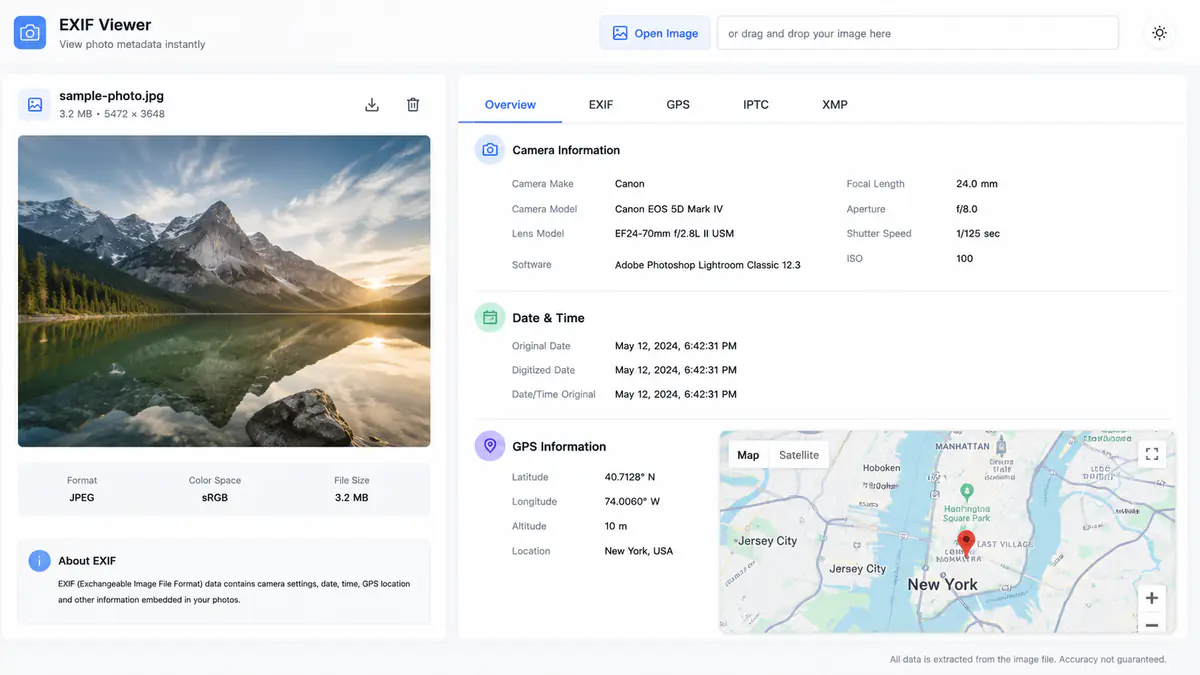
EXIF stands for Exchangeable Image File Format. It's a set of details your camera or phone attaches to every photo automatically. You never see it, but it travels with the file.
A typical photo's EXIF data includes the date and time it was taken, the camera or phone model, settings like shutter speed and ISO, and very often the GPS coordinates of where you were standing. Some of that is harmless. The location is not.
If you post a photo from home, the coordinates can point straight to your front door. The same goes for your workplace, your child's school, or a place you visit often. Anyone who downloads the image can read that data with a free tool in seconds.
There are good reasons to strip it out. Selling on marketplaces, dating apps, forums, or anywhere you'd rather not reveal your address. Removing metadata also makes files a little smaller and cleaner, which helps if you're publishing images on a website.
Not every upload strips this for you. Big platforms like Facebook and Instagram remove EXIF automatically, but sending a photo by email, message, or uploading it to many smaller sites keeps it fully intact.
How to Remove Metadata on Windows
Windows can strip metadata on its own, with no extra software. It's built into the file properties.
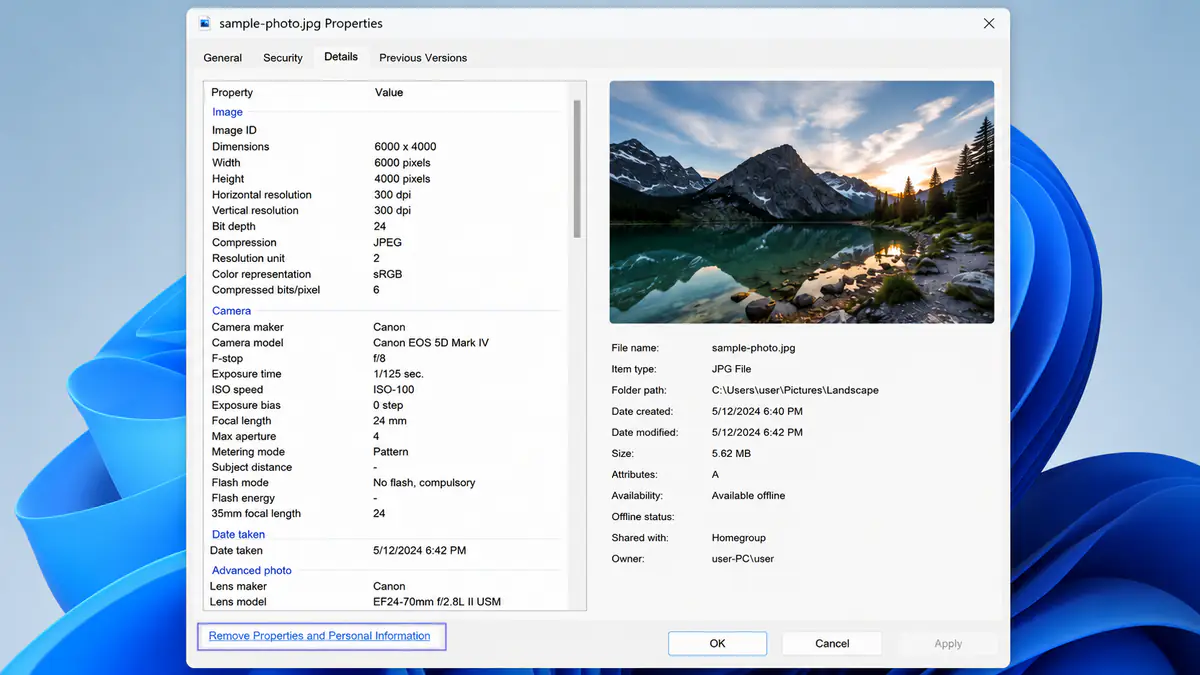
Find the photo in File Explorer and right-click it.
Choose Properties, then open the Details tab. You'll see the metadata listed, including camera info and GPS if it's there.
At the bottom, click Remove Properties and Personal Information.
Select Create a copy with all possible properties removed, or tick the specific fields you want gone.
Click OK. Windows saves a clean copy with the metadata stripped.
Making a copy is the safer route, since it keeps your original untouched. If you have a whole folder to clean, select all the photos first, then right-click and follow the same steps. Windows applies the change to every selected file at once.
One thing to know. This clears the standard EXIF fields, which covers location and camera data for most people. For a guaranteed full wipe of every trace, an online tool or dedicated app goes a step deeper.
How to Remove Metadata on Mac
Mac doesn't have a one-click strip-everything button, but Preview can remove the location data, which is the part that matters most for privacy.
Open the photo in Preview.
Go to Tools in the menu bar, then Show Inspector.
Click the (i) info tab, then look for the GPS tab. If the photo has location data, it shows up here on a map.
At the bottom of that GPS tab, click Remove Location Info.
Save the file with Cmd + S.
That takes care of the GPS coordinates. If you also want to clear the camera details, dates, and everything else, Preview alone won't do it. Use a free online tool or an app like ImageOptim, which strips all metadata and also shrinks the file size.
For a batch of photos, ImageOptim is the easier path, since you can drag a whole folder in and it cleans every file in one go.
How to Remove Metadata on iPhone
If you're on iOS 15 or later, the iPhone can remove a photo's location without any app.
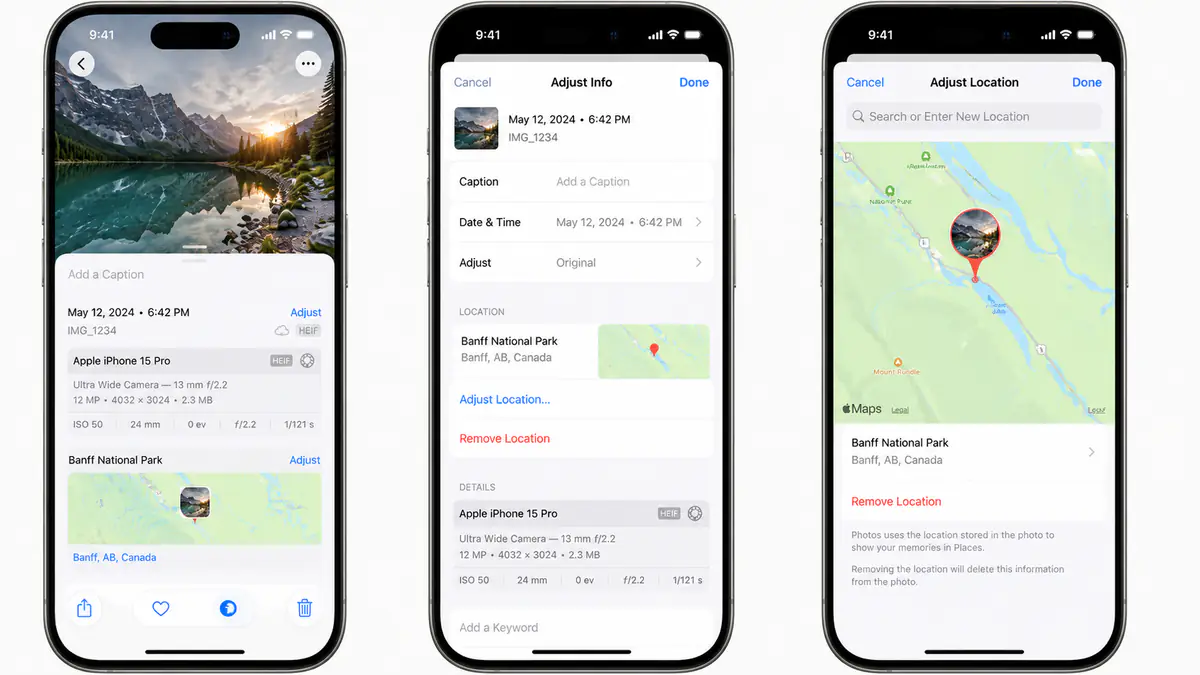
Open the photo in the Photos app.
Tap the (i) info button, or swipe up on the photo to see its details. Any location shows on a small map.
Tap Adjust, next to the location.
Choose Remove Location. The map disappears, and the GPS data is gone from that photo.
To do several at once, select multiple photos in your library first, tap the share or more menu, and choose Adjust Location > Remove Location. It clears them all together.
This handles the location, which is the main privacy concern on a phone. The camera model and settings stay in the file. If you need those gone too, share the photo through a metadata remover app or an online tool before sending it.
How to Remove Metadata on Android
Android varies by phone, but Google Photos gives most people a built-in way to remove location.
Open the photo in Google Photos.
Swipe up or tap the three-dot menu to see its details, including a location map if one exists.
Tap Edit, or look for Remove location in the menu.
Confirm, and the GPS data is stripped from that copy.
Not every Android phone shows this option, and some only hide the location rather than delete it fully. When that happens, a free app does the job cleanly. Photo Exif Editor and Scrambled Exif both let you view all the metadata and wipe it, either one photo or a batch at a time.
For the camera details and timestamps on top of the location, an app or online tool is the surest way to clear everything. As with the other platforms, keep an original copy if you might want that data later.
How to Remove Metadata Online
If you want everything gone in one step, a free online tool is the simplest option. It strips all the EXIF data at once, not just the location.
The steps are the same on most of them:
Open a metadata remover like Jimpl, Verexif, or EXIF Remover.
Upload your photo.
The tool shows you what data it found, then removes it.
Download the clean copy.
Good ones process the image in your browser and hand back a fully stripped file, with no camera info, GPS, or timestamps left behind. Many also let you view the metadata first, so you can see exactly what your photo was carrying.
One caution. You're uploading a photo to a website, so pick a tool that processes files in the browser or deletes them quickly, and avoid it for anything truly sensitive. For those, a built-in method or an offline app keeps the photo on your own device.
How to Stop Your Camera From Adding Location
Removing location photo by photo works, but it's easier to stop your phone from recording it in the first place. Then nothing you shoot from now on carries GPS data.
On iPhone. Go to Settings > Privacy & Security > Location Services > Camera, and set it to Never. Your camera keeps working, it just stops tagging shots with your location.
On Android. Open the Camera app, go into its settings, and turn off Location tags or Save location. The exact name varies by phone. You can also go to Settings > Apps > Camera > Permissions and switch Location off for a firmer block.
This won't clean the photos already in your library, so pair it with one of the methods above for older shots. But going forward, your new photos stay location-free automatically, which saves you the cleanup every time.
Does Removing Metadata Reduce Image Quality?
No. Metadata is just text information attached to the file, separate from the image itself. Removing it strips out the data fields without touching a single pixel, so the photo looks exactly the same. The only change is a slightly smaller file, since you've removed the extra text.
Verify the exported copy
Metadata removal varies by app and export path. Some tools remove GPS coordinates but keep the camera model, date, caption, or editing history. After cleaning a photo, inspect the new file with a second viewer before sharing it.
Work on a copy. Metadata can be useful for organizing originals, proving capture details, or maintaining an archive, so deleting it from the master is often unnecessary.
Related ExtractPics guides
- How to View EXIF Data on Any Device
- How to Resize an Image
- How to Convert PNG to JPG (and JPG to PNG)
- Is It Legal to Download Images From the Internet?
Sources and verification
This article was reviewed against the following primary documentation and standards in August 2026:
Share the cleaned copy, keep the original
Remove location information from the version you plan to post, then check that copy with another metadata viewer. Turn off camera location only if you do not need geotagging for your own library. Keep the untouched original somewhere private. This protects sharing privacy without throwing away useful archive information.
