How to View EXIF Data on Any Device


Every photo you take stores hidden details, and you can view a photo's EXIF data in seconds once you know where to look. This data records when the shot was taken, which camera or phone made it, the exact settings used, and often the GPS location.
Reading it is useful for all kinds of reasons. Photographers check the settings behind a great shot. Others want to confirm when and where a picture was actually taken, or check whether an image they're about to share is carrying their location.
This guide shows how to view EXIF data on Windows, Mac, iPhone, and Android, how to do it online, and how to read the GPS coordinates a photo may be holding.
What's inside a photo's EXIF data
EXIF stands for Exchangeable Image File Format. It's a block of information your camera writes into the file every time you take a photo. Open it up and you'll usually find these details.
Date and time. The exact moment the photo was captured, down to the second. Useful for sorting shots or confirming when something happened.
Camera and lens. The make and model of the device, and often the lens. This is how you can tell whether a photo came from a phone or a DSLR.
Camera settings. Aperture, shutter speed, ISO, and focal length. Photographers read these to understand how a shot was exposed and to learn from it.
GPS location. If location was switched on, the coordinates of exactly where you stood. This is the most sensitive field, since it can reveal a home or workplace.
File details. Dimensions, resolution, file size, and the software used if the photo was edited.
Not every photo has all of this. Screenshots carry very little, and images stripped of metadata show almost nothing. But a standard photo straight from a camera usually holds the full set. If you'd rather clear these fields before sharing, that's easy to do too.
How to View EXIF Data on Windows
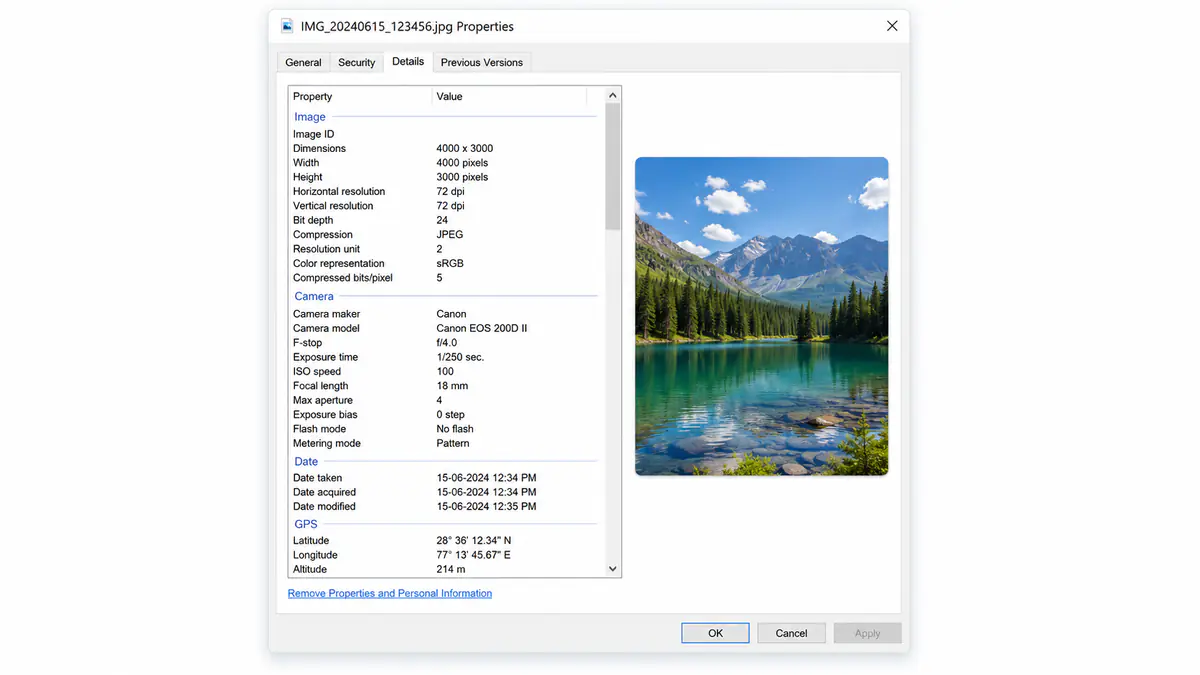
Windows shows a photo's EXIF data without any extra software.
Find the photo in File Explorer and right-click it.
Choose Properties.
Open the Details tab.
Scroll through the list. You'll see the date taken, camera make and model, the settings, and if it's present, the GPS latitude and longitude.
That covers what most people need. Windows shows the common fields but not every last one. For a deeper look, including the full GPS data laid out clearly, a free tool like ExifTool or an online viewer reads everything in the file.
To check several photos quickly, add the columns you care about to the Explorer view. Right-click a column header in a folder, choose More, and tick fields like Date taken or Dimensions. Now you can see that data for every photo in the folder at a glance.
How to View EXIF Data on iPhone
On iOS 15 and later, the iPhone shows a photo's key EXIF data with no app needed.
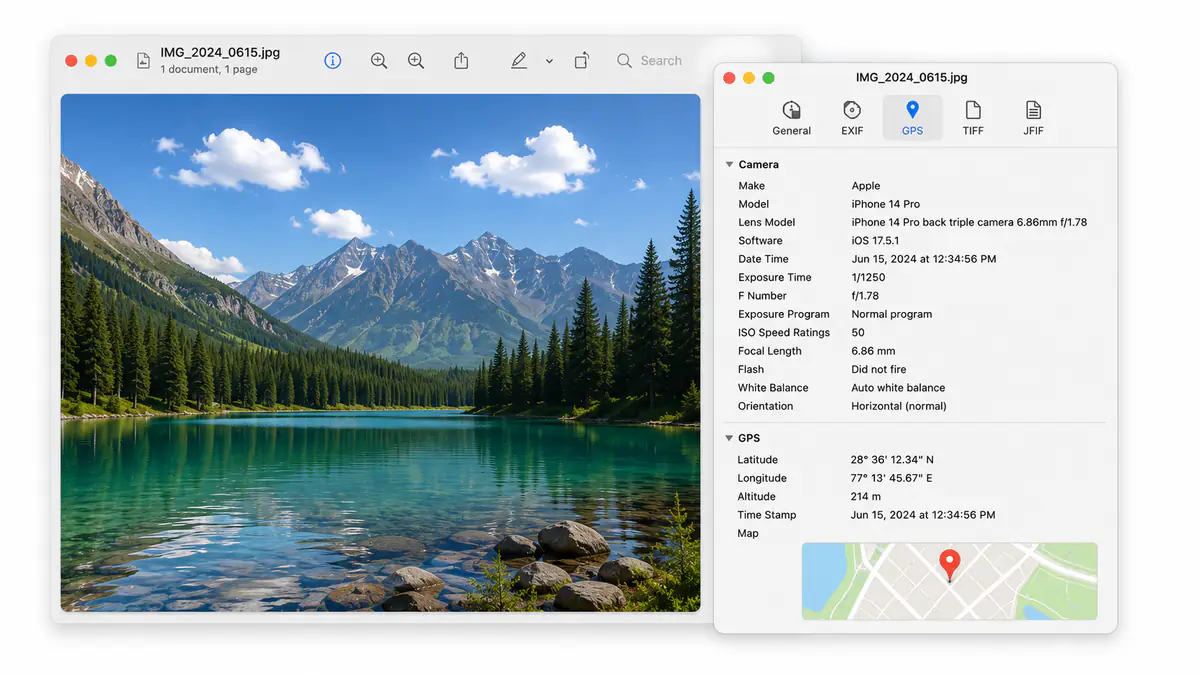
Open the photo in the Photos app.
Tap the (i) info button at the bottom, or swipe up on the photo.
You'll see the camera model, the settings like aperture and ISO, the file size and resolution, and the date. If location was on, a map shows exactly where it was taken.
That covers the essentials. For the complete set of fields, or to view EXIF on an older iOS version, a free app like Exif Metadata or EXIF Viewer by Fluntro reads everything and lays it out in detail.
These apps are also handy when you want to check a batch of photos, or copy out specific values like the GPS coordinates to use elsewhere.
How to View EXIF Data on Android
Android shows the basics through Google Photos, which comes on most phones.
Open the photo in Google Photos.
Swipe up on the image, or tap the three-dot menu and choose Details.
You'll see the date, the camera and settings, the file size and resolution, and a map if the photo has location.
Because Android varies so much between brands, some phones show more than others, and a few show very little. For the full picture on any device, a free app fills the gap. Photo Exif Editor is the most popular, with a clear breakdown of every field, and it works whether or not your gallery app shows EXIF.
Open the app, pick a photo, and it lists everything the file holds, including the exact GPS coordinates you can tap to view on a map.
How to View EXIF Data Online
If you don't want to install anything, an online EXIF viewer works from any browser on any device.
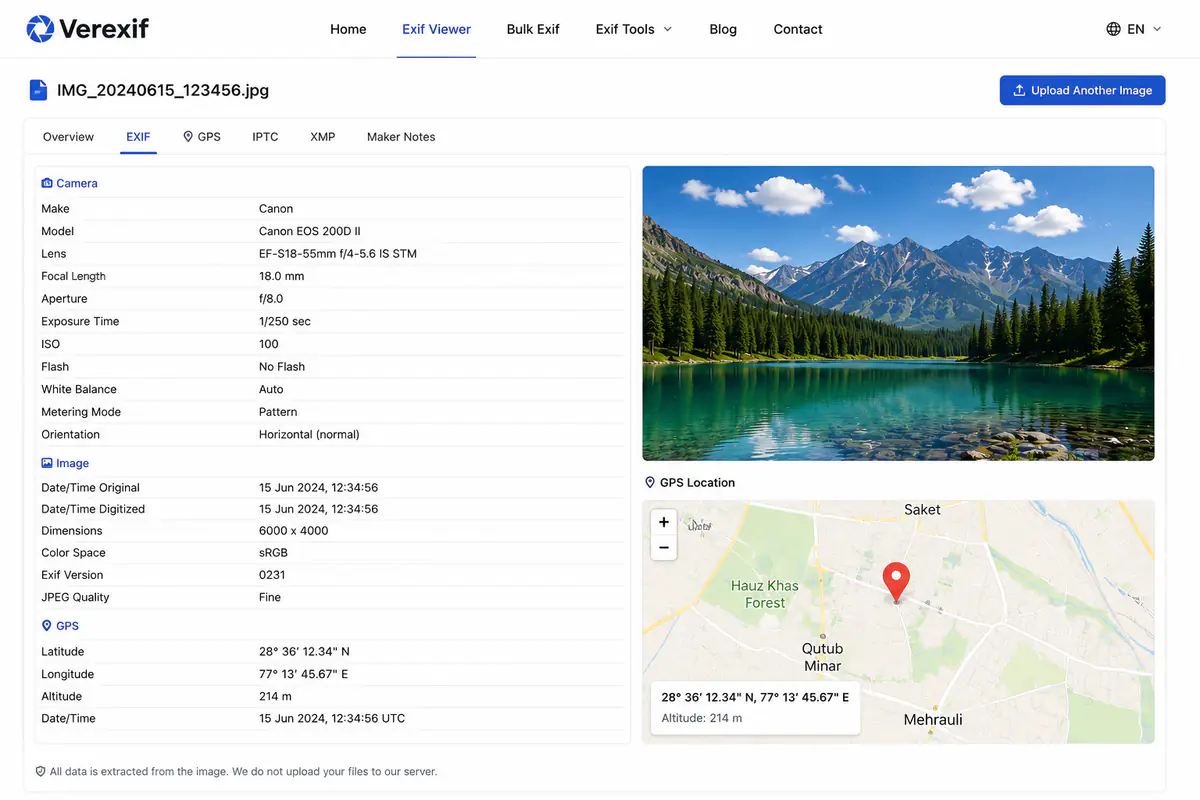
Open a viewer like Verexif, ExifData.org, or Jimpl.
Upload your photo, or paste an image URL if the tool allows it.
The site reads the file and lays out every field, from camera and settings to the full GPS location, often shown on a map.
These are the quickest way to see everything a photo holds, since they surface fields your device might hide. Many also let you remove the data right after, if you decide you want it gone.
One caution. You're uploading the photo to a website, so for anything sensitive, use a viewer that processes files in your browser, or stick to a built-in method that keeps the image on your device.
How to Read the GPS Location From a Photo
The GPS field is the one people most want to read, whether to remember where a shot was taken or to check what a photo is revealing. Here's how to turn those coordinates into an actual place.
Most tools show the location for you. In Windows Properties, look under the GPS section for latitude and longitude. On Mac Preview and phone apps, the location usually appears directly on a map, so you see the spot without doing anything.
If you only have the raw coordinates, they look like two numbers, for example 40.7128, -74.0060. To find the place, copy them straight into Google Maps or Google Earth and it drops a pin on the exact spot.
Online viewers make this easiest. Tools like Verexif show the GPS location on an embedded map as soon as you upload the photo, so you can read where it was taken at a glance.
Keep in mind that a photo without location data simply won't have this field. That either means the camera had location off, or the metadata was already stripped before you got the file.
What missing EXIF does not prove
A photo without EXIF is not automatically fake or suspicious. Messaging apps, social networks, screenshots, editing tools, and exports often strip metadata. EXIF can also be changed, so it should not be treated as proof of who created a photo or where an event occurred.
Use metadata as one clue. For important verification work, compare it with the source file, visible details, file history, and other evidence.
Related ExtractPics guides
- How to Remove Metadata From Photos
- Image File Formats Explained
- How to Resize an Image
- Is It Legal to Download Images From the Internet?
Sources and verification
This article was reviewed against the following primary documentation and standards in August 2026:
Read metadata in context
Built-in viewers are enough for dates, device details, and basic location data. Use a dedicated viewer when you need the full tag set. If a location appears, decide whether it is safe to share before publishing the file. Missing or edited EXIF is common, so avoid drawing a strong conclusion from metadata alone.
