Save Image

A simple way to save any image from a website

Paste the page link and save the image you need. You get the original file at the size the site served, ready to keep.

  • check_circle100% free
  • check_circleNo signup
  • check_circleOriginal file
  • check_circleWorks on phone
image

35,713 image extractions and counting

Quick Extract: Images on this page onlyDeep Extract: Follows links across up to 3 pages
Checking…

shieldOnly download images you own or have permission to use. Respect each site's copyright and terms. Rights holders can request removal via our DMCA policy.

Extract your URL in a private tab. Nothing is sent to our servers. How it works

Add to Chrome

Extracted images will appear here.

What this save image tool does

This save image tool lets you save a specific picture from a public webpage without hunting through the source or opening each image in a new tab. Paste the page URL and it opens the page in a headless browser, the same way you see it, then lists every image the page actually loaded. You preview the list and save the one you want, or the whole set.

It also finds the images that simple savers skip. Photos that appear as you scroll, responsive files in srcset and pictures set as CSS backgrounds all appear because the page is rendered first. Each result keeps its original format, so a WebP stays a WebP and a PNG stays a PNG at the resolution the site served.
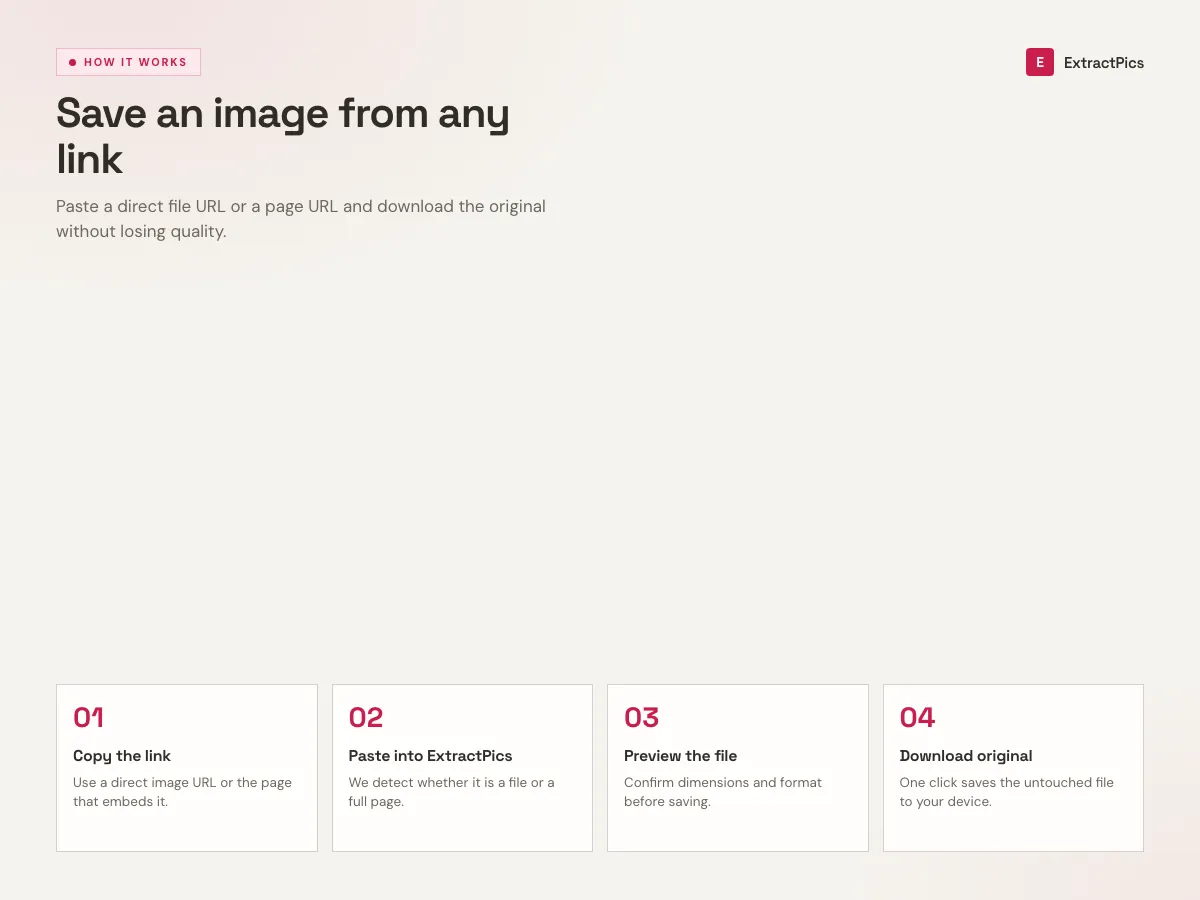
Guide for saving any image from a website using the save image tool
Steps to save an image from a page URL with original quality.

What you get when you save an image

save

One click after the scan

Preview the photos the page loaded and save the one you want without opening each file separately.

photo_library

Finds images you cannot right click

Lazy loaded photos, responsive srcset files and CSS background images appear because the page is rendered first.

folder_zip

One image or the whole page

Save a single picture or select several and download them together in one ZIP.

When to use save image

Use it when you found an image on a page and want the real file quickly, not a screenshot or a thumbnail.

Perfect for

  • checkSaving a photo from a blog post or news article
  • checkKeeping product images for a moodboard
  • checkPulling images on a phone where long press is awkward
  • checkSaving the full size file behind a thumbnail
  • checkCollecting a handful of reference shots from one page
  • checkArchiving images you have permission to keep

What you get

  • checkSave any image from a public page URL
  • checkKeeps original resolution and native format
  • checkFinds lazy loaded and background images
  • checkPreview before you save
  • checkDownload one file or a ZIP of many
  • checkNo signup, works on any device

How to save an image

  1. 01

    Copy the page link

    Open the page with the image and copy its URL from the address bar.

  2. 02

    Paste the link here

    Drop the link in the box above. The tool renders the page and lists every image it loads.

  3. 03

    Save the image

    Find the one you want and click save, or select several and download them as a ZIP.
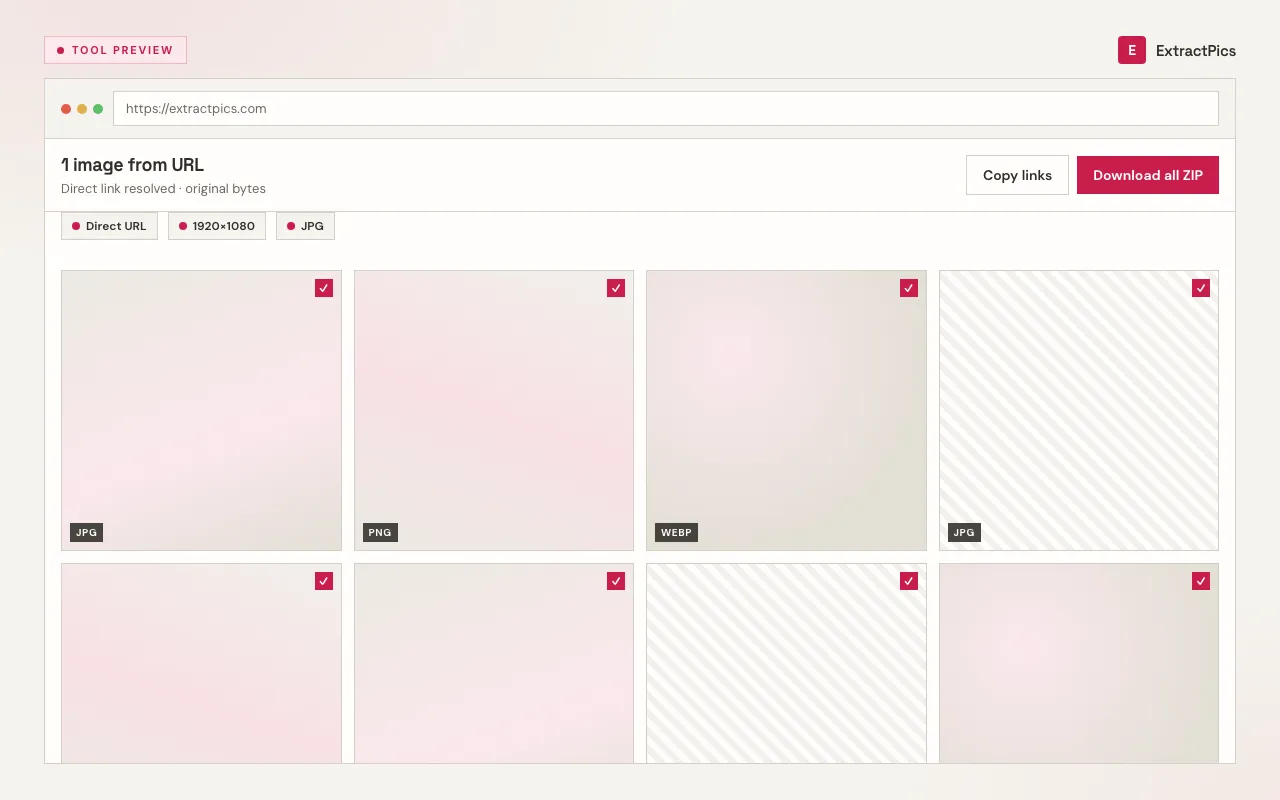
Save image tool preview showing selected photos ready to save
Save image results with full size files ready to keep.

Why save with this tool instead of right click

Right click often fails when a site blocks the menu, hides the image behind a script, or only loads it after you scroll. This tool requests the page like a browser does, so lazy loaded and script rendered images still show up.

It is also quicker when you need more than one picture. You can scan the page once and save a whole gallery as one ZIP instead of opening each image in its own tab. It runs in the browser with no install and no account, and it only reaches public images.

Save image here vs screenshots

Both get you a picture, but only one keeps the original file.

MethodQualityFormat
ScreenshotRecompressed, croppedPNG of the screen
Save with this toolOriginal resolutionNative file kept
Right clickOften a thumbnailDepends on the site
This extractorLargest srcset keptOriginal kept

Frequently asked questions

If your question is not covered here, send us a message and include the page, file, or result type you are working with.

How do I save an image from a website?

Copy the page URL, paste it in the box above and run the scan. The tool lists every image the page loads. Preview them and click save on the one you want.

Is it free?

Yes. It runs in your browser with no signup. Paste a public page link and save right away. Very heavy bulk use may hit a fair use limit.

Does it save the original quality?

Yes. Each file saves at the resolution the site served and in its native format, with no recompression and no watermark from us.

Can I save multiple images at once?

Yes. Select the images you want after the scan and download them together as one ZIP.

What formats does it handle?

JPG, JPEG, PNG, WebP, SVG, GIF, AVIF, ICO and BMP. Each file keeps the format it was published in.

Do I need to install an extension?

No. It works in the browser on desktop and phone. No extension and no app to install.

What is this save image?

ExtractPics is a free save image for public webpages. Paste a URL into the box, hit Extract, and wait a few seconds. We open the page in a real browser, collect the images it loaded, and show them so you can preview, filter, and download. You will usually get most of what is on the page. Login walls and private galleries are out of reach because we only see what a normal visitor sees.

How can I find specific images?

After a scan, use the format and size filters on the results toolbar. That is the fastest way to drop icons, skip tiny files, or keep only JPGs. Filenames show on each card, so you can scan for a product name or a known asset. Tick the ones you want and leave the rest. You do not have to download the whole pile.

What can I do with the results?

Preview every image in a grid. Filter by type or size. Copy one URL or copy all of them. Download a single file, or select several and get a ZIP. Quick Extract covers the page you pasted. Deep Extract follows a few linked pages when the set is paginated. There is no account required to try this.

How do I download images?

When the scan finishes, each image has its own download control. Click it to save that file at the size the site actually served. Nothing is recompressed and no watermark is added. If you only need the address, copy the URL instead.

Can I download multiple images at once?

Yes. Select the images you want, then use Download selected to pack them into a ZIP. Large sets take longer because each file is fetched from its original host. A few files may be missing from the ZIP if that host blocks the request. Download those ones individually, or open them in a new tab.

The extraction does not work. Why?

The usual causes: the page is not public, it sits behind a login, or it is so slow or heavy that it never finishes loading. Very large infinite-scroll feeds can also time out. Try again in a minute, try a shorter URL (a single product page instead of a huge homepage), or switch between Quick Extract and Deep Extract. If the site itself is down, we cannot invent images that never loaded.

The download does not work. Why?

Some sites stop other pages from hotlinking their files. The preview may say it failed, or a ZIP may skip that image. Right-click the preview if you have one, or open the image URL in a new tab and save it from there. If nothing downloads at all, write to us from the contact page with the URL you tried.

How does the save image work?

Each run opens your URL in a headless Chrome browser. We wait for the page to render, run its JavaScript, and scroll so lazy-loaded pictures appear. Then we collect img tags, srcset sources, CSS backgrounds, picture elements, and SVG. Tracking pixels and broken URLs are stripped before you see the grid.

Does it work with dynamic websites?

Yes. The page is viewed the same way you would view it in Chrome. Scripts run. Network requests get a chance to finish. Infinite-scroll and lazy-load galleries are the reason we bother with a real browser instead of reading static HTML. If a picture only exists after you scroll, we try to load it before collecting.

How many images are extracted?

We scroll the page for several seconds and keep what loaded in that window — typically the first stretch of an infinite feed, not an endless crawl of the whole internet. Deep Extract can follow up to three linked pages. Duplicates and invalid files are removed. A 12-photo product page often returns all 12. A social feed that never stops scrolling will not.

Can I extract from multiple URLs at once?

Yes. Switch to Bulk Extract, paste more than one URL, and run it. Images from every address land in the same results grid, so you can filter and download them together. Each URL uses one global credit.

Help improve ExtractPics

Send feedback

About Save Image

What kind of feedback is this?
Quick rating

Do not include passwords or private data.0 / 2000