How to Extract Text From an Image

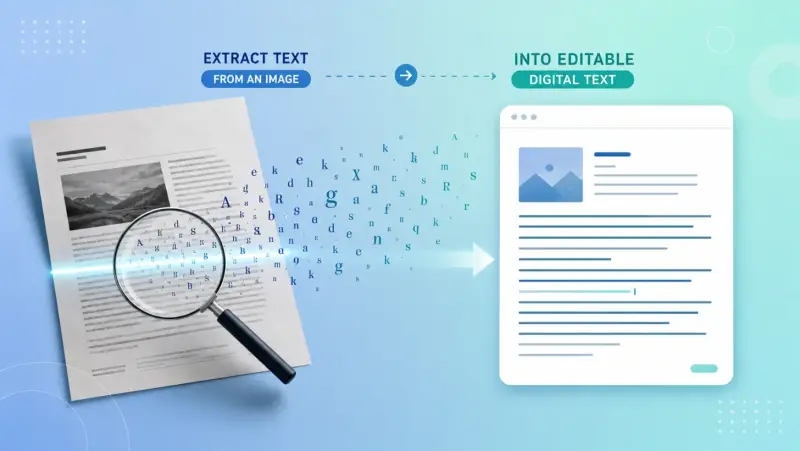
If you want to extract text from an image, you don't have to retype anything by hand. Whether it's a screenshot, a scanned page, or a photo of a document, the words can be pulled out and turned into editable, copyable text in seconds. The technology behind this is called OCR (optical character recognition), and these days plenty of free tools do it for you.
Below are the easiest ways to get text out of any image, on your computer or your phone, using tools you may already have. Pick the one that fits, and you'll have your text ready to copy, edit, or search.
Method 1: Use Google Docs (Free, No Software)
If you have a Google account, Google Docs has built-in OCR that's completely free. It works well for clear, printed text.
Go to Google Drive and upload your image.
Right-click the uploaded image and choose Open with → Google Docs.
Google Docs opens with the image at the top and the extracted text typed out right below it.
Copy the text, and delete the image if you don't need it.
It's a great option because there's nothing to install and your files stay in your own Google account. The catch is that it doesn't keep the original formatting, you get plain text, so you may need to tidy up the layout afterward.
Method 2: Extract Text on Your Phone With Google Lens
Already have the image on your phone? Google Lens reads text straight from a photo, and it's built into most Android phones and the Google app on iPhone.
Open Google Lens (or the Google app and tap the Lens icon).
Point your camera at the text, or load a photo from your gallery.
Tap the Text option, then tap the words you want.
Tap Copy to grab the text. You can even send it straight to your computer if you're signed in to the same account.
On an iPhone, you can also use the built-in Live Text feature: open a photo, press and hold the text, and tap Copy, no extra app needed.
This is the fastest way when the image is already on your phone, and it handles photos of signs, documents, and handwriting surprisingly well.
Method 3: Use a Free Online OCR Tool
When you just need text out of an image quickly and don't want to install or sign in to anything, a free online OCR tool does the job right in your browser.
Search for a free "image to text" or "OCR" tool and open one you trust.
Upload your image or drag and drop it onto the page.
Choose the language of the text if the tool asks.
Click Convert (or Extract), then copy the text from the results.
Most of these handle common image types like JPG and PNG, and many can read several languages. Pick one that shows the text clearly so you can check it before copying.
Same caution as always: don't upload private documents to a random website. If the image has sensitive information, use Google Docs or your phone instead, since those keep the file in your own account.
Method 4: Extract Text Using AI Tools
AI chatbots have become one of the easiest ways to pull text from an image, and they often handle tricky cases like messy handwriting or low-quality photos better than older OCR tools.
Open an AI tool that accepts images, such as ChatGPT, Gemini, or Claude.
Upload your image.
Type a simple request like "Extract all the text from this image."
Copy the text it gives you back.
The big advantage is flexibility. You can ask the AI to keep the formatting, fix obvious typos, translate the text, or pull out only certain parts, like just the email addresses or totals. For anything beyond plain copying, this is the most powerful option.
Just remember the same privacy rule: avoid uploading confidential documents to any tool you don't fully trust.
Method 5: Extract Text From an Image Using Python
If you code and need to process many images automatically, Python handles OCR with the pytesseract library, a wrapper around Google's Tesseract engine.
First, install Tesseract on your system, then the Python package:
pip install pytesseract pillow
Then run this:
import pytesseract
from PIL import Image
image = Image.open("yourimage.png")
text = pytesseract.image_to_string(image)
print(text)
That reads the image and prints the text it finds. You can loop this over a folder to process hundreds of images at once. For better results, use clear, high-contrast images, Tesseract struggles with blurry or low-resolution scans.
It's free and runs entirely on your own machine, which also makes it a good choice for sensitive files.
That reads the image and prints the text it finds. You can loop this over a folder to process hundreds of images at once. For better results, use clear, high-contrast images, Tesseract struggles with blurry or low-resolution scans.
It's free and runs entirely on your own machine, which also makes it a good choice for sensitive files.
Tips for Getting Accurate Results
No matter which tool you use, the quality of the image decides how good the text comes out. A few simple things make a big difference:
Use a clear, sharp image. Blurry or low-resolution photos lead to mistakes. The crisper the text, the better the result.
Get good lighting. If you're snapping a photo, avoid shadows and glare. Even, bright light is best.
Keep the text straight. Crop out the background and line the text up horizontally instead of at an angle.
Pick the right language. If the tool lets you choose a language, set it to match the text for far fewer errors.
Always proofread. Even the best OCR slips up on odd fonts or handwriting, so give the result a quick read before using it.
Spend a few seconds on a clean image and you'll save yourself a lot of fixing afterward.
Image to Text Tools: Converters and Extractors
Every method above does the same job an image to text converter does: it reads the characters in a picture and hands them back as editable text. Whether a tool calls itself an image text extractor, a text from image extractor, or an image to text converter, the engine underneath is OCR (optical character recognition). Pick whichever fits your workflow. Accuracy depends far more on how clear the source image is than on what the tool is named.
OCR output still needs a human check
OCR can confuse similar characters, drop punctuation, and scramble tables or multi-column pages. Names, prices, dates, account numbers, and measurements deserve a line-by-line check against the image. A confident-looking result can still contain a small but important error.
Do not upload medical, financial, identity, or confidential documents to a public OCR service unless its privacy terms and data handling are acceptable for that material. Offline tools are the safer choice for sensitive images.
Related ExtractPics guides
- How to Extract Images From a PDF
- How to Extract Images From a Word Document
- How to Resize an Image
- How to Remove Metadata From Photos
Sources and verification
This article was reviewed against the following primary documentation and standards in August 2026:
Choose accuracy before convenience
Use a phone tool for a short, clear image and document OCR for full pages. Improve the input before switching services: straighten the page, crop distractions, and use a sharper image. Then proofread the result against the source. OCR saves typing time, but it should not be treated as an unquestioned transcript.
